When EMR Slowness is Reported
Issue: User(s) complaining about the EMR being slow, freezing, or crashing.
- Validate slowness in Production (log in to same POS as user who reported slowness). To validate slowness – try appointments, opening a medical record, and time how long it takes (up to 15-20 seconds is considered normal)
- Ask EMR tech group (Manson/Leah/Michael) to check the server
- If you see slowness as well, or a server issue is identified, EMR tech group (Manson/Leah/Michael) has to investigate further
- If not able to validate, and servers look okay, call user and remote into their machine to see what functionalities they are using
• Proceed to steps outlined under Troubleshooting with User
Troubleshooting with User
Check Network Speed
Clean up Temp File Folder
Check the Computer's RAM
Restart the Workstation
Create Dump File
Check Network Speed:
- Click on Start button and type cmd
- In the cmd window type: ping spappemr001 and press Enter key
- In the cmd window type: ping vch.ca and press Enter key
- Review the average latency speed for each ping. The average latency for the computer should be under 10ms. If it is over 20ms, this may indicate that there is a network issue with the computer or with the clinic.
Clean up Temp File Folder:
- Open File Explorer on the computer
- Copy and paste this path in the address bar: C:\Users\<username>\AppData\Local\Temp
Note: Replace <username> with the user's LAN user name (ex. JSMITH) - In the Temp folder, select all files, (Ctrl+A will select all documents)
- Delete all files by pressing delete on your keyboard
Note: Some files may not delete; you can skip those.
Check the Computer's RAM:
- When remoted into the user’s workstation, use Ctrl+Alt+End to pull up the Task Manager
- Click on Performance tab
- See memory to see if all memory is being used
- If most of the memory is being used, close any unused applications (Internet explorer, Chrome, etc.) Or have the user restart their workstation.
- If there is still an issue, it could be a problem with the vendor software code. Please report to EMR tech group (Manson/Michael/Leah) who will review code as a starting point
Restart the Workstation:
- Have the user restart their workstation, wait 5 minutes, and then log back into their Windows account
- Re-launch the EMR and see if performance improves
Create Dump File:
If the EMR continues to be slow/freeze/crash after troubleshooting with the user, you should create a dump file and send it to Intrahealth for further investigation.
Note: You can only create a dump file if the user is accessing the EMR through the VPP Applications Folder.
1. Send 'Collect dump file' VBScript to user:
- Log into the PHSA STFP site: https://sftp.phsa.ca/WebInterface/login.html#/ and click on your folder
- Click Add files... and upload the zipped 'Collect dump file' VBScript file
- The VBScript file is located here: \\vch.ca\departments\PCAC_EMR\01 - PCCEMR\08-EMR Toolkits\08-02 EMR Performance Toolkit
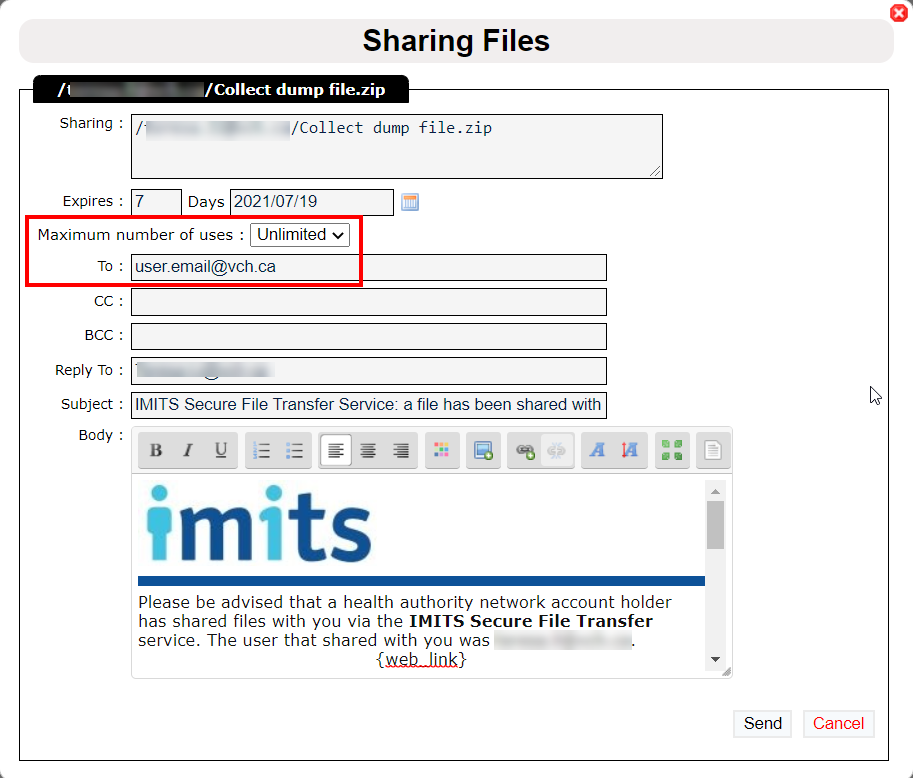
- Select the uploaded file and click Share
- Change Maximum number of uses to 'Unlimited', enter the user's email, and click Send
2. Run VBScript:
- Remote into the user's workstation and use Ctrl+Alt+End to pull up the Task Manager
- From the Task Manager, right click Profile icon and select Create Dump File (this process can take several minutes)
- Once the dump file is created, navigate to the user's email inbox and open the email from SFTP
- Download and unzip the 'Collect dump file' VBScript
- Navigate to the folder where the VBScript file has been downloaded and double-click on the file
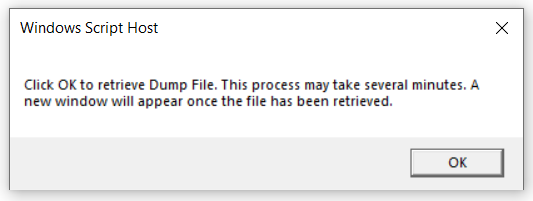
- A Windows Script Host pop-up will appear. Click OK to run the file
3. Send Dump File to Intrahealth
- If the VBScript successfully retrieves dump file, you will get a pop-up with the following message: Dump file(s) has been retrieved. At this point, you can stop remoting into the user's workstation.
- On your own workstation, navigate to \\vch\applications\pcc emr\temp\dumps\
- Note: Be very careful when you are in the \\vch\applications\pcc_emr\ folders. This is where the client files are hosted and if the directory is moved/deleted/renamed etc., it will cause a downtime!
- Carefully copy the dump file to \\vch\departments\pcac_emr\01 - PCCEMR\01-Reports and Data Extracts\Performance\Dumps\
- Send the dump file to Intrahealth for further analysis