Pilot POS: Home ViVE Program
Technical Requirements
Configuration
User Access to Provider Direct
Login
Home
Patients
Patient Home Page
Personal Info
Appointments
Tasks
Results
Settings
Send Photo to Profile
Videos
Resources
Overview
Provider Direct allows users and clinicians to access Profile EMR data outside of the clinic environment, using their smartphone, tablet or computer. Within Provider Direct, users can view, and sometimes modify, Client Demographics, Appointments, Tasks, Results, Interventions, and Encounters. Provider Direct is the rebranded Accession/Provider Portal.
Pilot POS: Home ViVE Program
The pilot site for Provider Direct is Home ViVE Program (VIV) - see EMR-9166, due to their mainly-remote workflows.
Key Decisions
- Access to about 20 clinicians working remote, including casuals and locums (admin staff will not have Provider Direct access)
- License will be paid by Home ViVE program
- No messaging functionality within Provider Direct as the team will continue to use their Whatsapp groups
- No demographics modifications allowed within Provider Direct due to PARIS interface
Known Gaps and Future Considerations
[in progress]
- Results view limited to assigned clinician, no all-POS visibility
- No group appointment or meeting creation
- Task group messaging requires exact code entry
Pilot Outcomes and User Feedback
[in progress]
- Assess load time and login latency
- Assess navigation ease
Dependencies for Broader Rollout
[in progress]
- Funding model for licenses across programs
- Additional Provider Direct OnTheGo roles may need to be configured
- Governance for enhancements and ongoing vendor engagement
Technical Requirements
[More info from Gus to be added here]
- Deliverable: Gus, technical PM, with their work with technical teams, will provide analyst with URL for Provider Direct
Configuration
This will cover the configuration process of Provider Direct. Provider Direct can be configured once Intrahealth has licensed Provider Direct.
Provider Direct Role Action
To be able to see Provider Direct Preferences, enable Organization/Preferences/Accession Provider.
Provider Direct Preferences
Once Intrahealth has licensed Provider Direct for your practice, it can be configured by navigating to Organisation/Preferences/Setup/Profile Provider Portal. The Profile Provider Portal Preferences view will appear.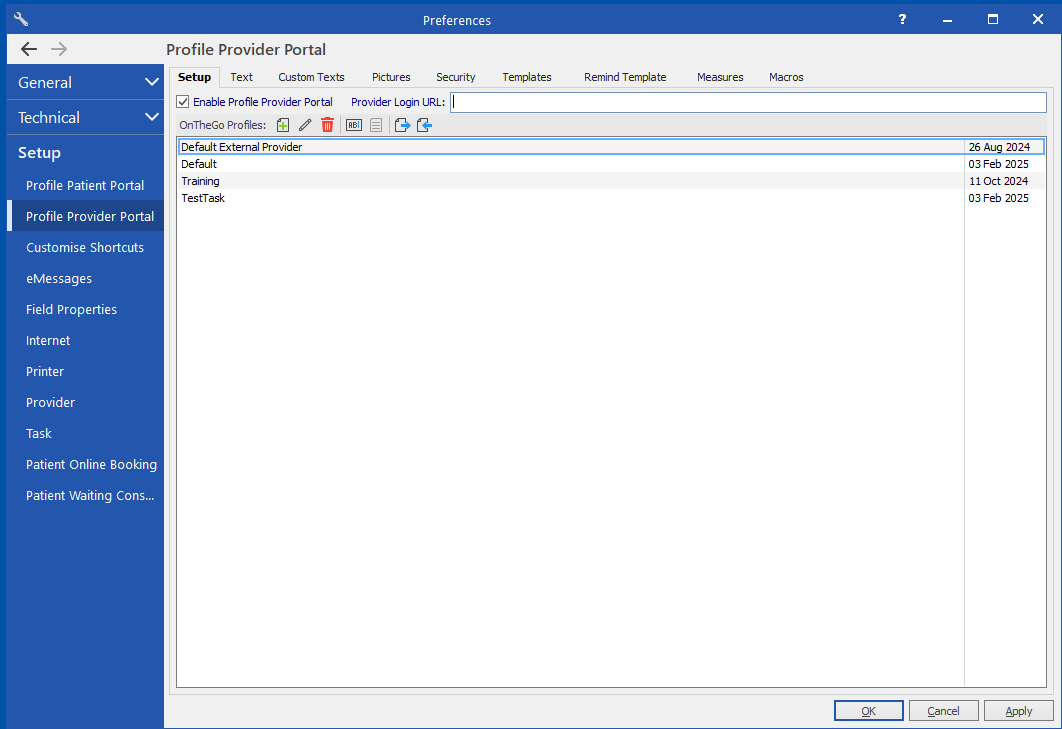
Setup
The first tab is Setup.
The URL that would be added in the Provider Login URL textbox can be configured.
Hosted customers will follow a standard format provided by the Intrahealth team, with the suffix, "/ProviderDirect" added at the end of the standard format URL. Self-hosted customers should contact Intrahealth for instructions on additional configuration requirements.
Ensure there is a checkmark in the checkbox next to Enable Profile Provider Portal.
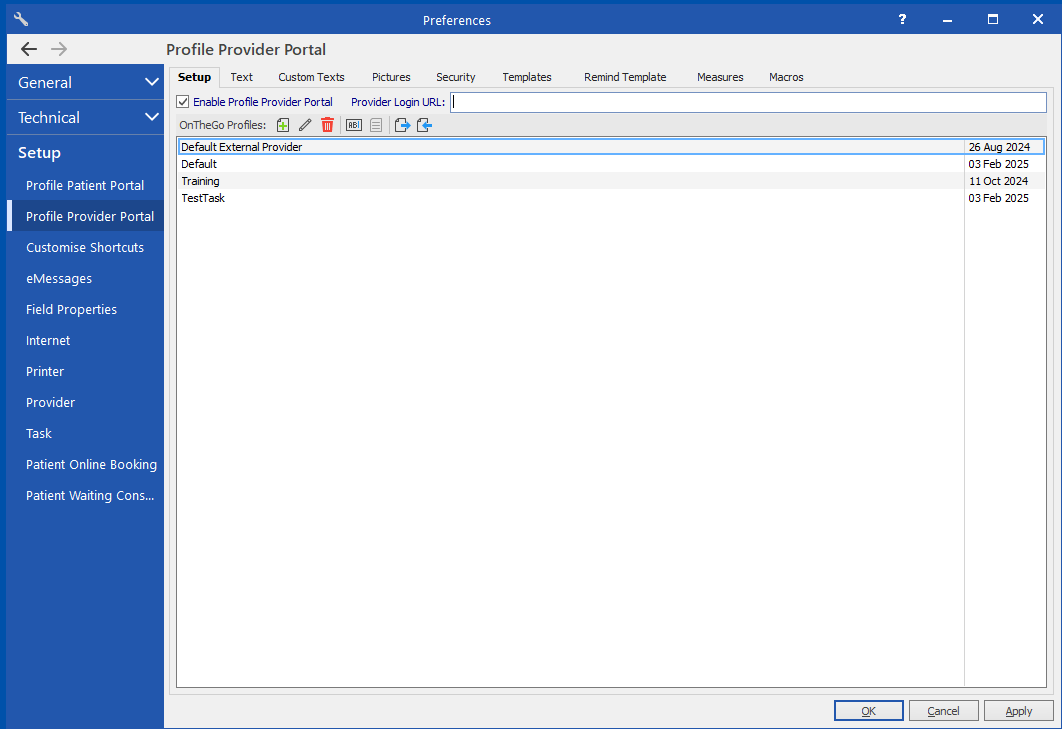
There is a Default profile set up that has all the permissions for a provider turned on. However, these permissions can be customized by the practice to dictate the access and/or the ability to make changes. Double-click the Default profile in the OnTheGo Profiles table to access the permissions.
Note: Additional OnTheGo Profiles can be created by left-clicking  in the OnTheGo Profiles table toolbar so that different providers can be granted different permissions.
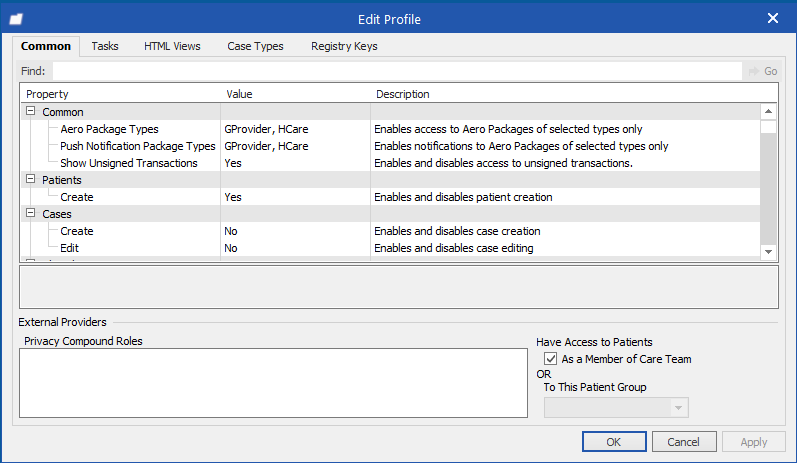
Left-click in the Value field for the property and enter the modifications. Some categories have both an Enable property and a Write property. As an example, providers can see Care plans for patients but not make changes if the Enable value is Yes, but the Write value is No.
A description of the preference selected is visible in the bottom panel.
Text
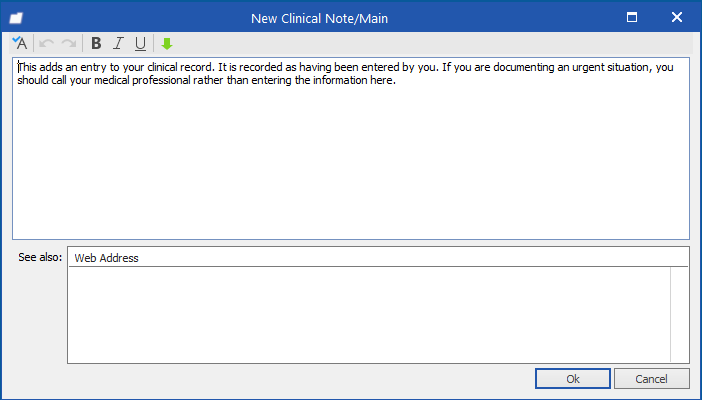
The Text tab allows for text to be added or modified for various areas in Provider Direct, where instructions or help will display.
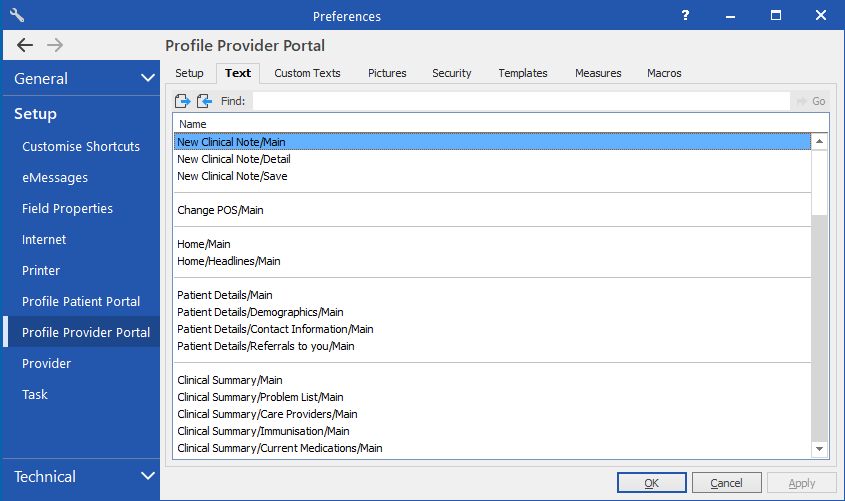
To edit this area, double-click the item and enter or modify the text in the free text area in the window.
Custom Texts
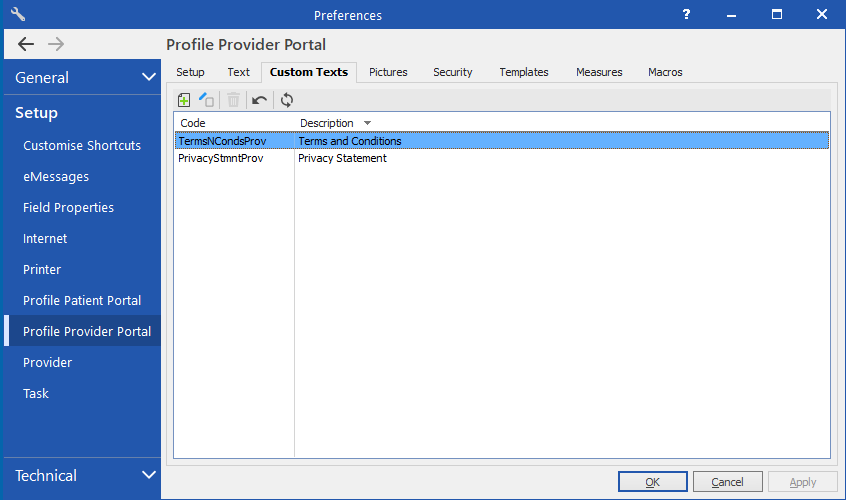
The Customs Texts tab allows the creation of text customized to your practice. The existing options Terms and Conditions and Privacy Statement can be written by double-clicking the option and entering the text in the free text area of the Edit Information window.
Pictures
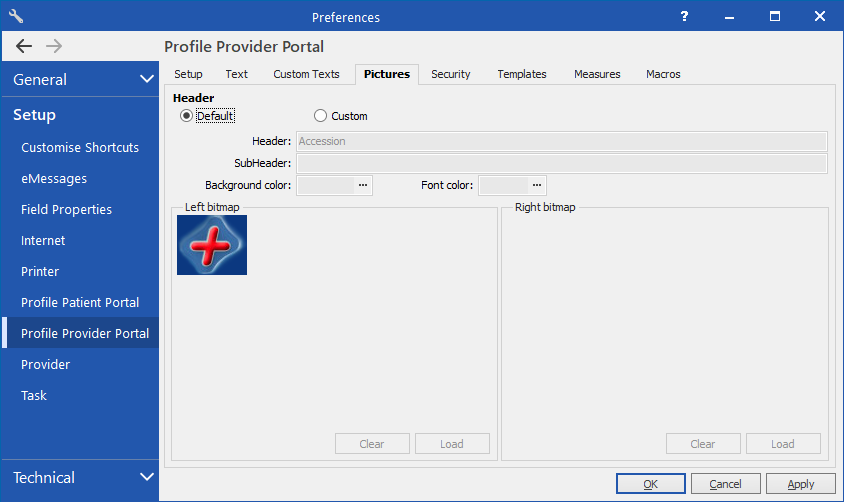
The Pictures tab allows a custom webpage header to be created. Use the Header and SubHeader fields to enter text, customize the Background and Font colours to match the image and  images to display in the header.
Security
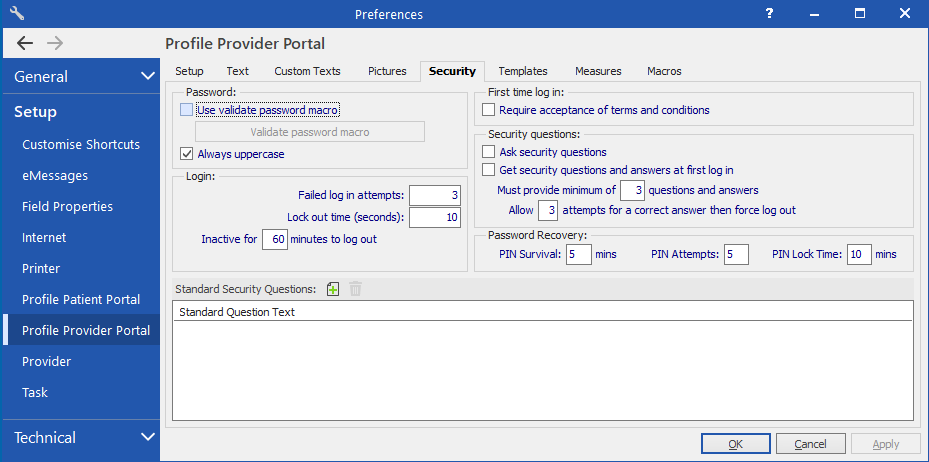
The Security tab allows password and security question options to be chosen, as well as login settings to be configured.
The Require acceptance of terms and conditions checkbox will require providers to accept the Terms and Conditions as defined in the Custom Texts tab upon the first login.
Accessing photos
In order to access photos taken with the Send Photo to Profile functionality in Provider Direct, the role action Special\Shared Files needs to be granted to the providers.
User Access to Provider Direct
User access to Provider Direct is controlled in Organisation/People & Places/Internet for the specific provider.
To be able to view Internet tab in People & Places, go to Organisation > People & Places > Open your account > Right-click General segment > Preferences and apply to roles.
Open the user/clinician account and navigate to Internet segment.
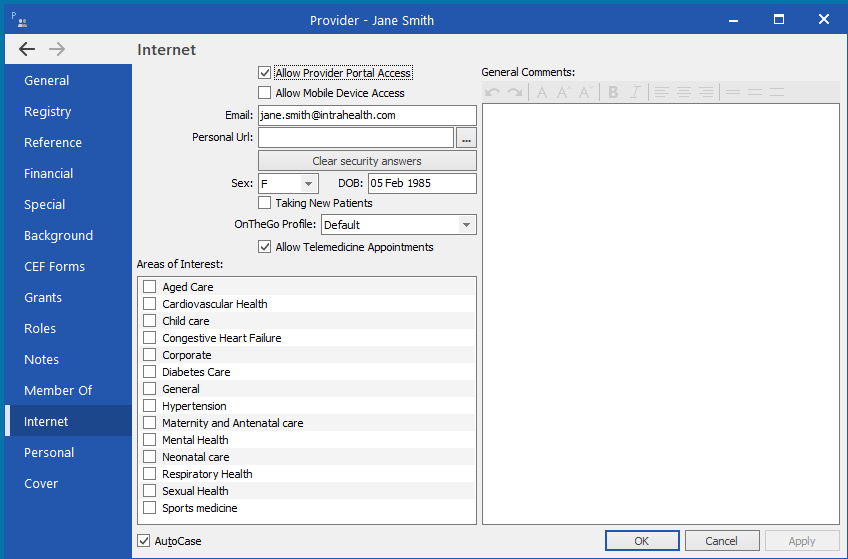
- Check the Allow Provider Portal Access checkbox to enable the provider to log in to Provider Direct.
- Use the OnTheGo Profile dropdown list to select the appropriate OnTheGo profile, if it’s not Default.
Login
- When Provider Direct is licensed:
- If vendor-hosted, Intrahealth will give a URL for users to use Provider Direct
- If self-hosted, PHSA will give a URL for users to use Provider Direct
- Access to Provider Direct is configured within Profile EMR
- To log into Provider Direct, enter the web URL in your browser
- In the login screen, enter your usual Used ID and Password that you use to log in to Profile EMR
- Tap Log In
- After successful log in, the user will be at the Home screen of the Provider Direct app
Important! It may take 20-30 seconds to cache on smartphone.
Note: There is no password reset option from within Provider Direct. The Can't log in? button only provides instructions on who to contact.
Note: The language can be changed by clicking on the language selector on the top of the screen.

How to Easily Save Provider Direct URL on Mobile Device
For Chrome on Android
- Open the Google Chrome browser on your Android phone or tablet
- Navigate to Provider Direct URL and login
- Tap the three-dot menu icon in the top-right corner of Chrome
- Select Add to Home Screen from the menu and tap Add
- Provider Direct will be added to your Home Screen. Tap this icon to open Provider Direct.
For Safari on iPhone or iPad
- Open Safari on your iPhone or iPad
- Navigate to Provider Direct URL and login
- Tap the Share button (square with an arrow pointing upward) at the bottom of the screen
- Scroll down and tap Add to Home Screen, then tap Add in the top-right corner
- Provider Direct will be added to your Home Screen. Tap this icon to open Provider Direct
For Chrome on iPhone or iPad
- Open the Google Chrome app on your iPhone or iPad
- Navigate to Provider URL and login
- Tap the Share button (square with an arrow pointing upward) in the top-right corner of the address bar
- Scroll down in the share sheet and select Add to Home Screen, then tap Add in the top-right corner
- Provider Direct will be added to your home screen. Tap this icon to open Provider Direct.
Note: Adding website shortcuts via Chrome on iOS requires iOS 16.4 or later.
Home
The Home screen of Provider Direct displays the last login date and current logged on POS.
Click on Locations hyperlink to switch POSes.
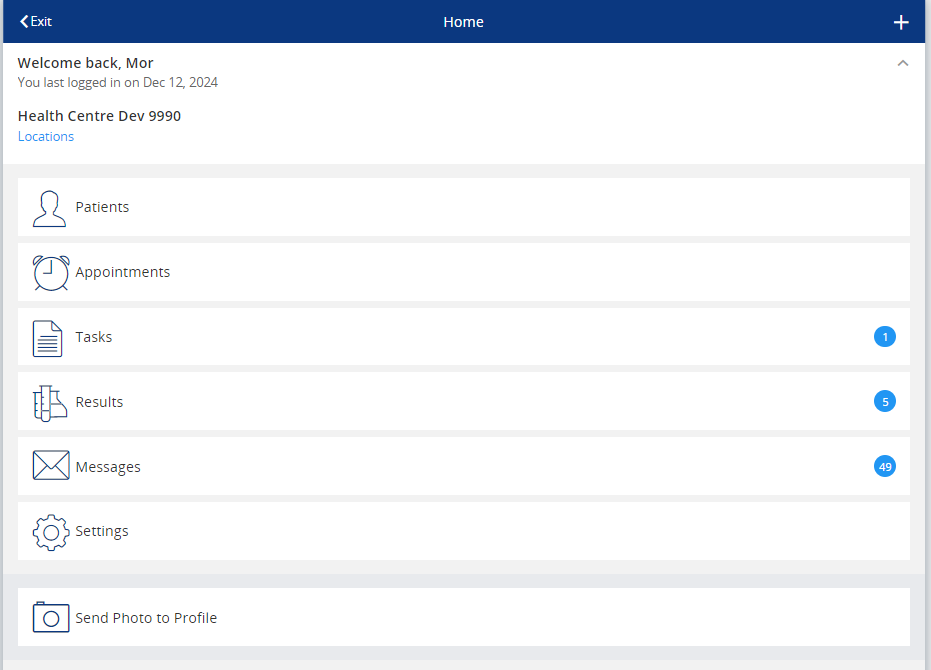
Users can also create a new task using the Quick Actions available at the top righthand side via  .
.

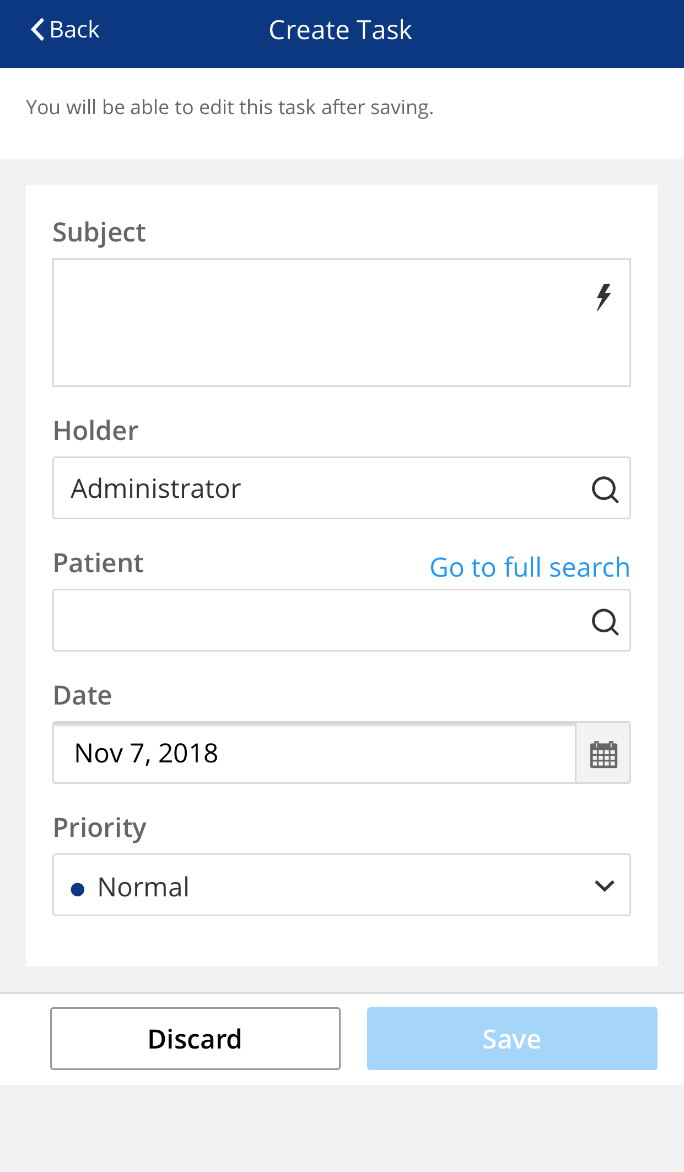
New Task Quick Action
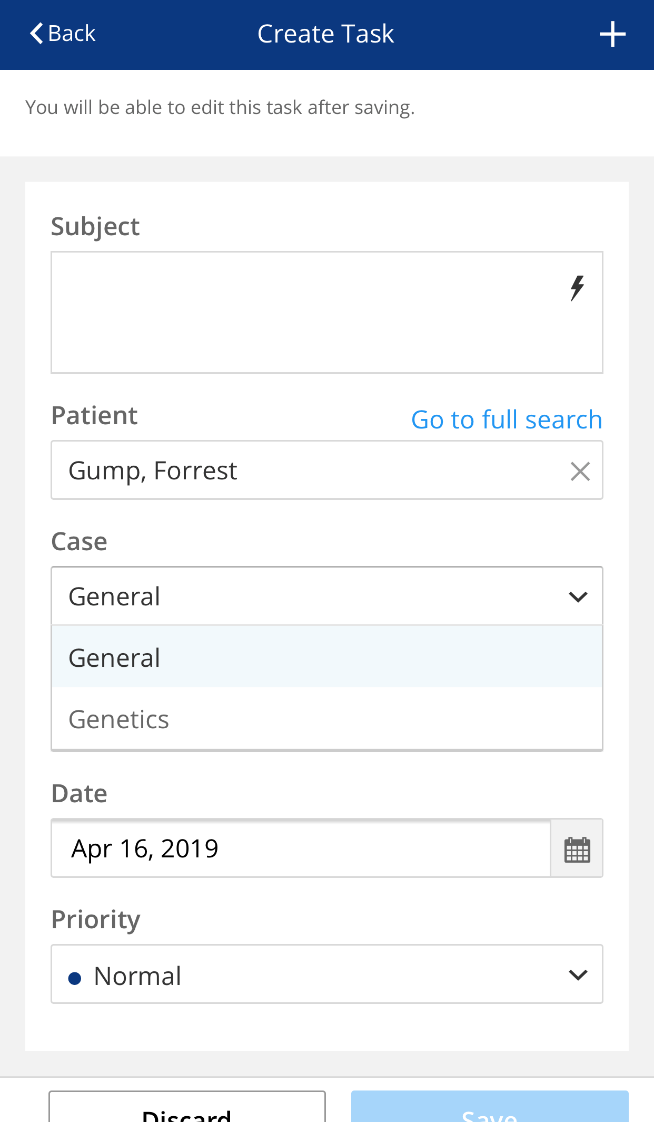
The Task fields can be entered in the usual way and saved or discarded.
To message a task group, the user must know the exact code to enter it (e.g., VIV-CSC).
Quick texts can also be created (similar concept to typing templates) and launched via lightning bolt.
New Message Quick Action
A message can be sent to another user or to a patient. This is disabled in the VCH setup.
Patients
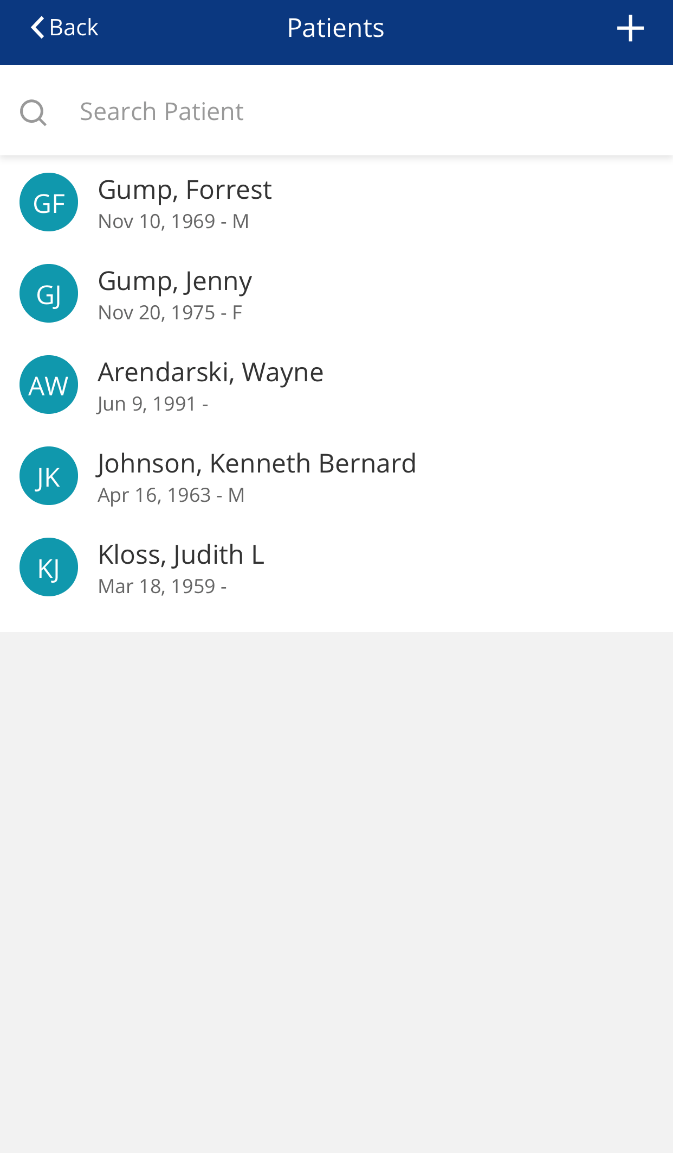
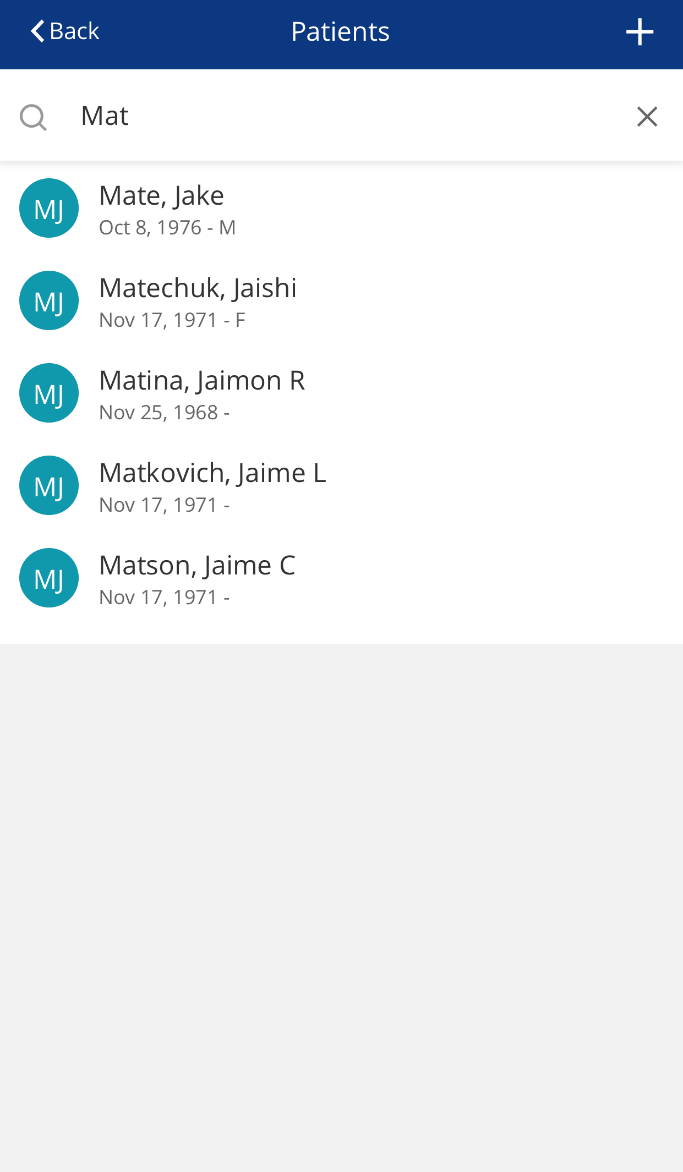
The Patients screen displays recent patients and the user can search for a specific patient in the whole database.
Patient Home Page
Once the user has searched for a patient, the Patient Home Page displays. This is the patient’s medical record. The user can call the patient by pressing  . The user can also access a map of the patient’s address by pressing
  .
.
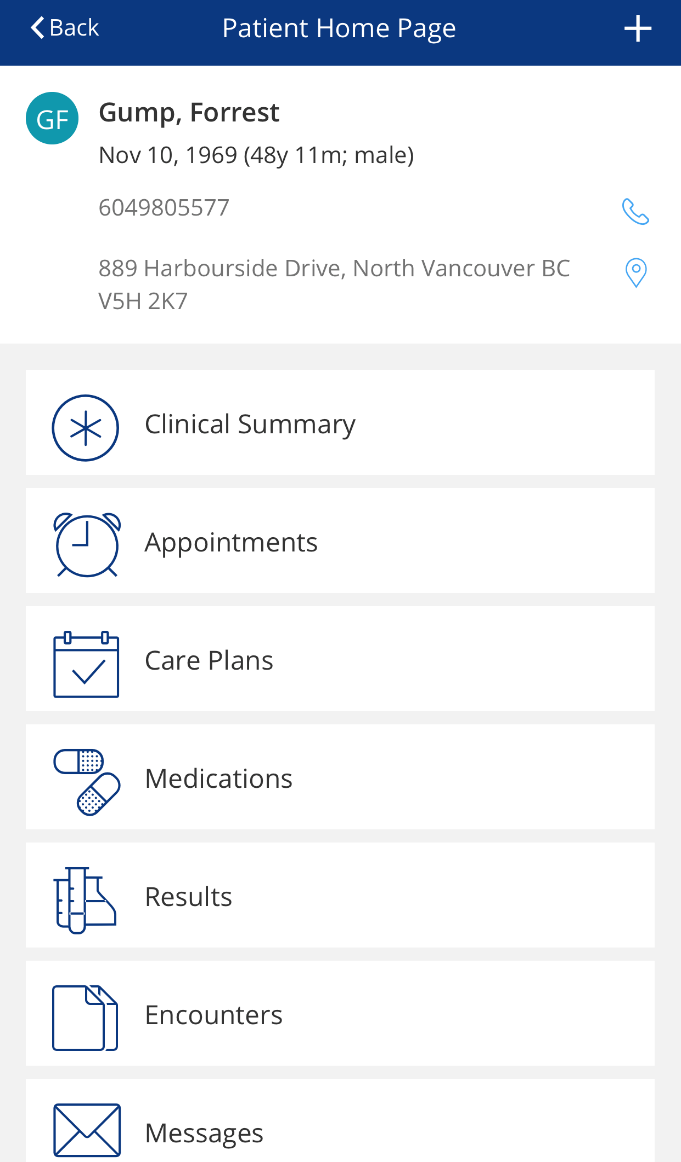
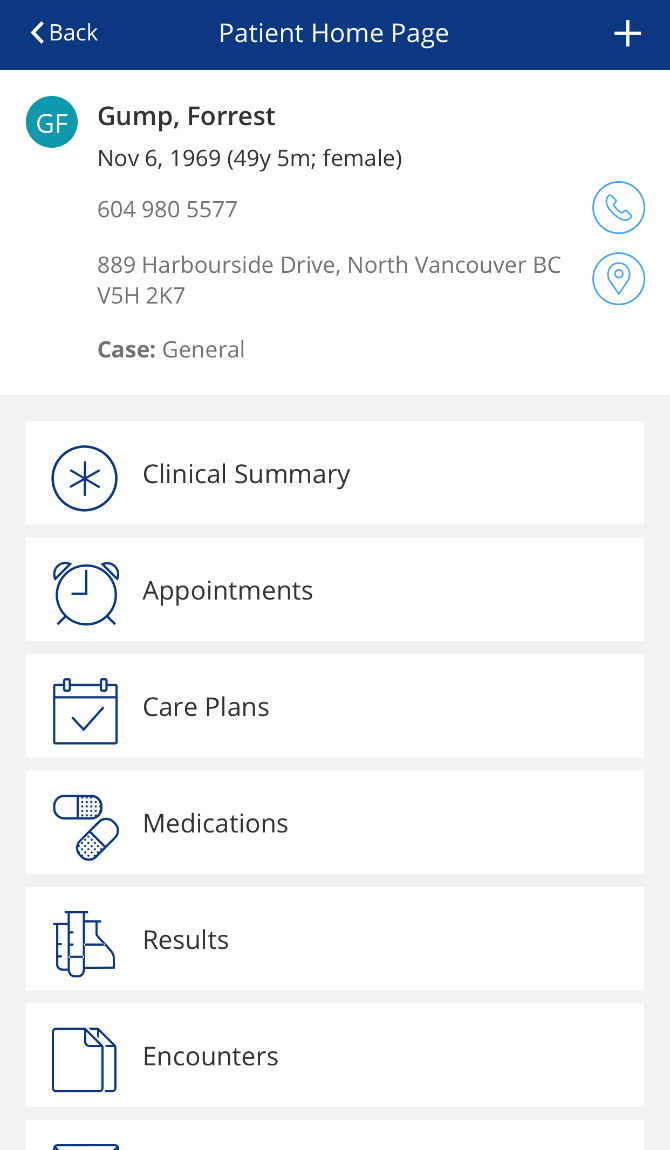
When the user presses  at the top right-hand side, they can now create a New Encounter for the patient, in addition to the Quick Actions for New Task.
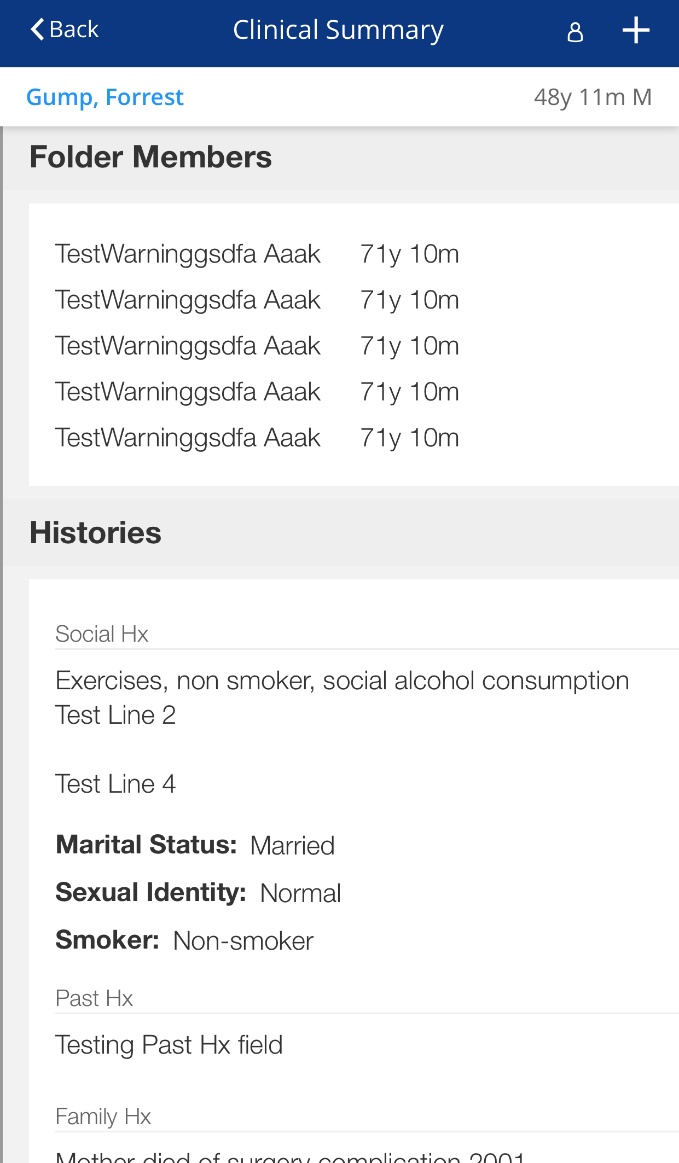
Clinical Summary
The Clinical Summary screen displays static information for the patient, like histories, the problem list, and usual prescriptions.
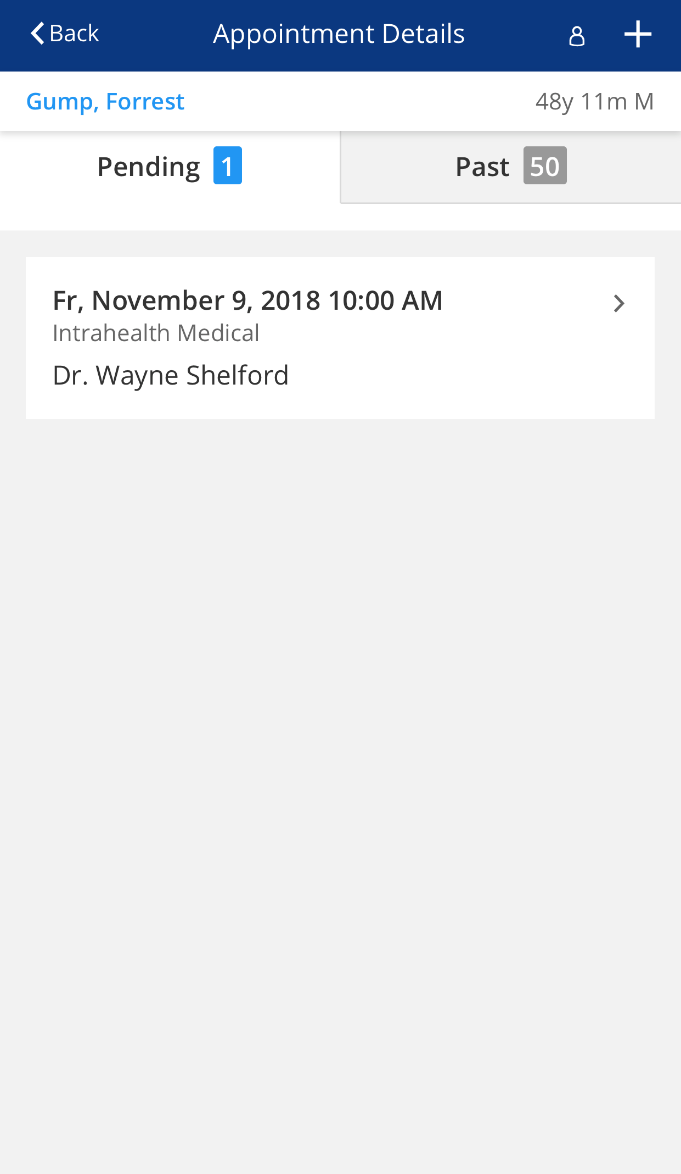
Appointments
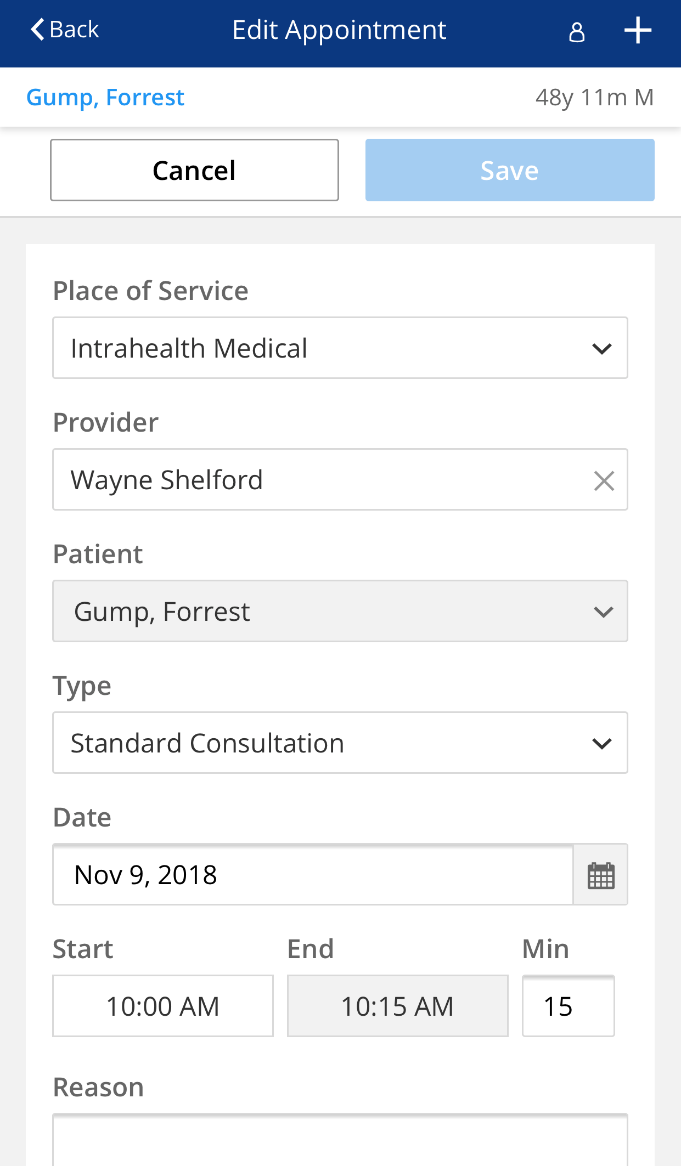
The Appointment Details screen displays the patient’s pending and past appointments.
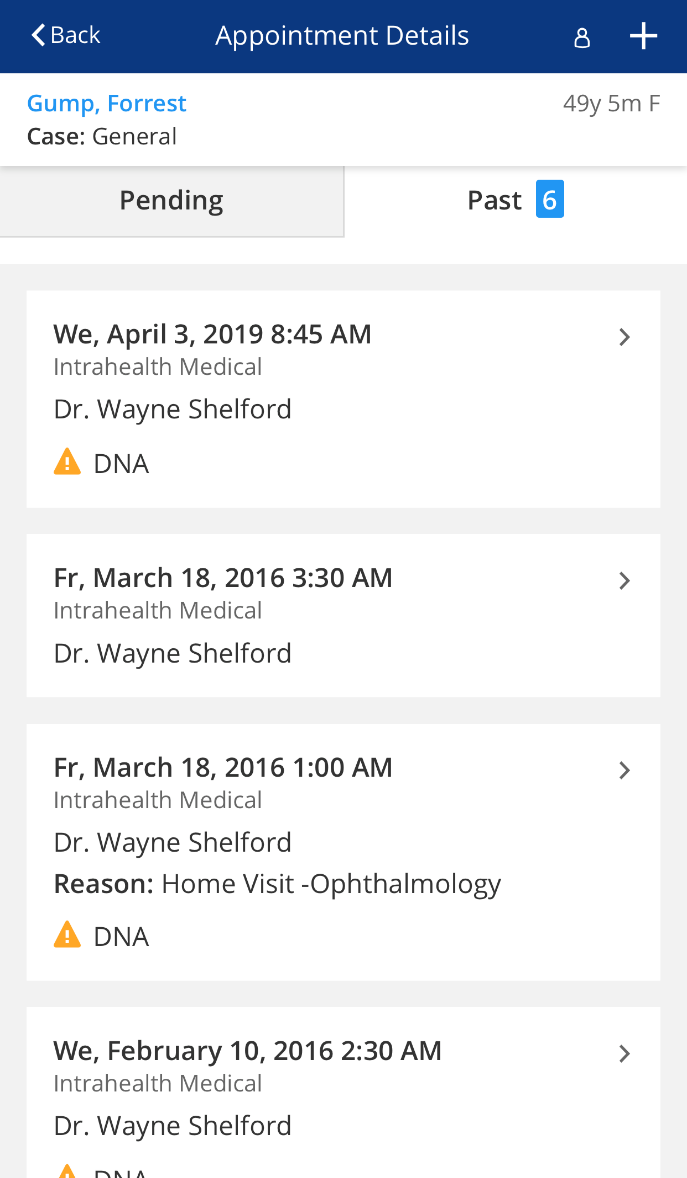
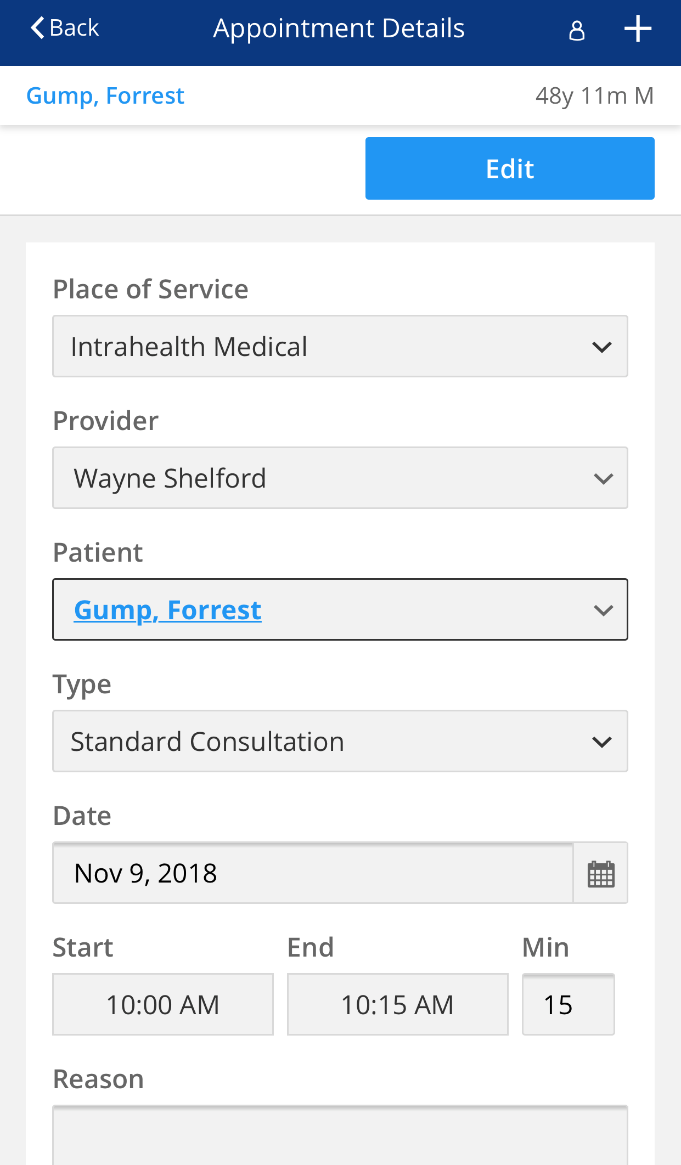
To view or edit an appointment, click the appointment. Press  to open the Edit Appointment screen.
Care Plans
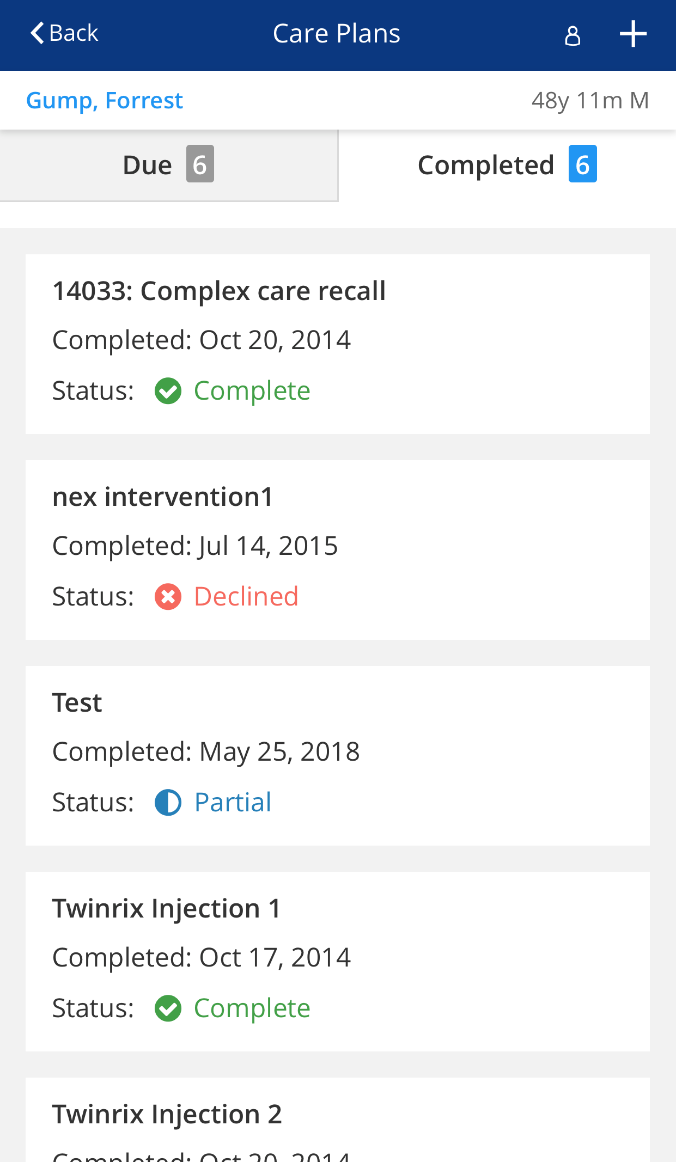
The Care Plans screen displays the due and completed interventions for the patient.

Medications
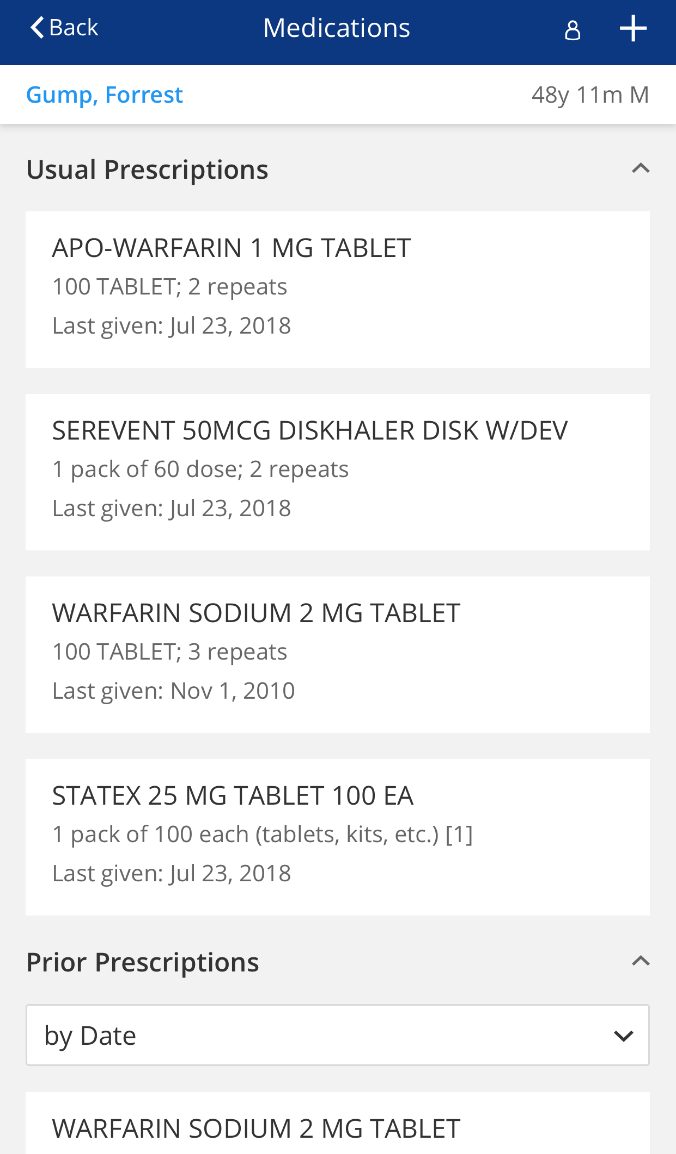
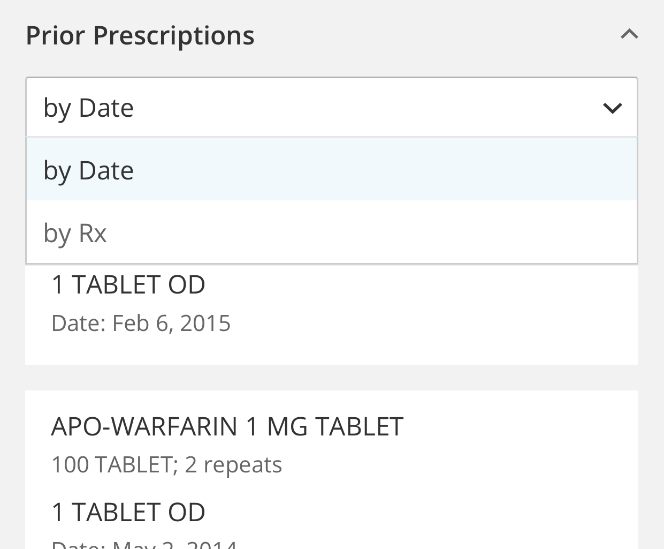
The Medications screen displays the usual and prior prescriptions for the patient. Prior prescriptions can be displayed by date or prescription.
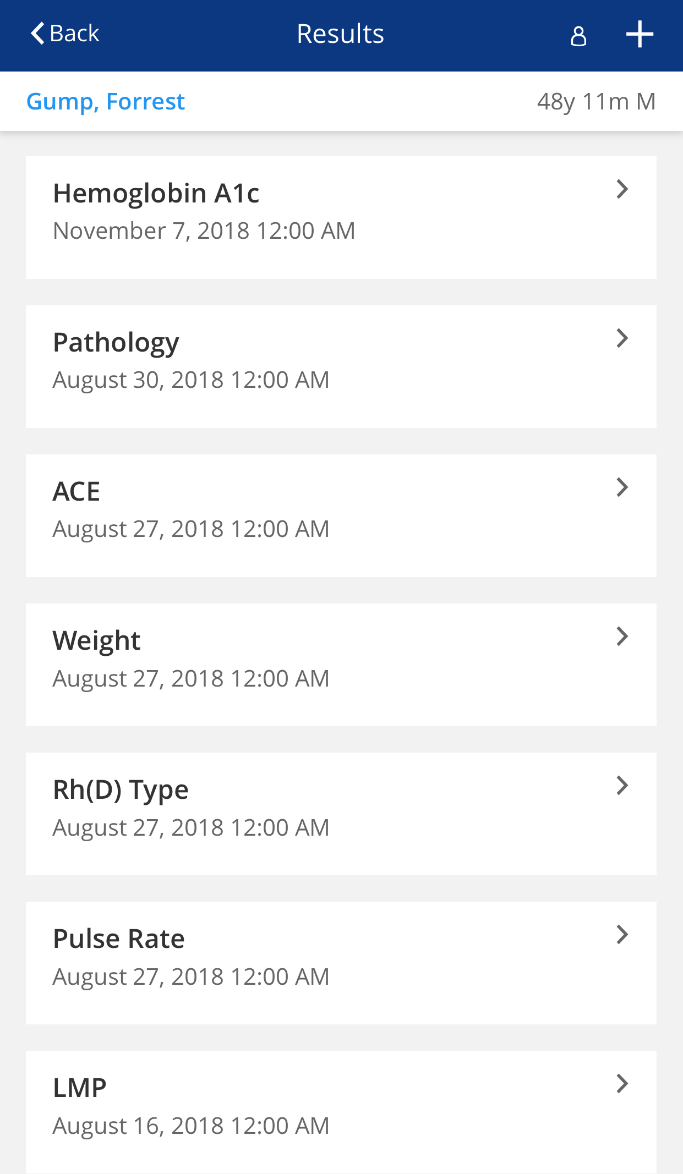
Results
The Results screen displays the patient’s results.
Encounters
The Encounters screen displays the patient’s encounters.
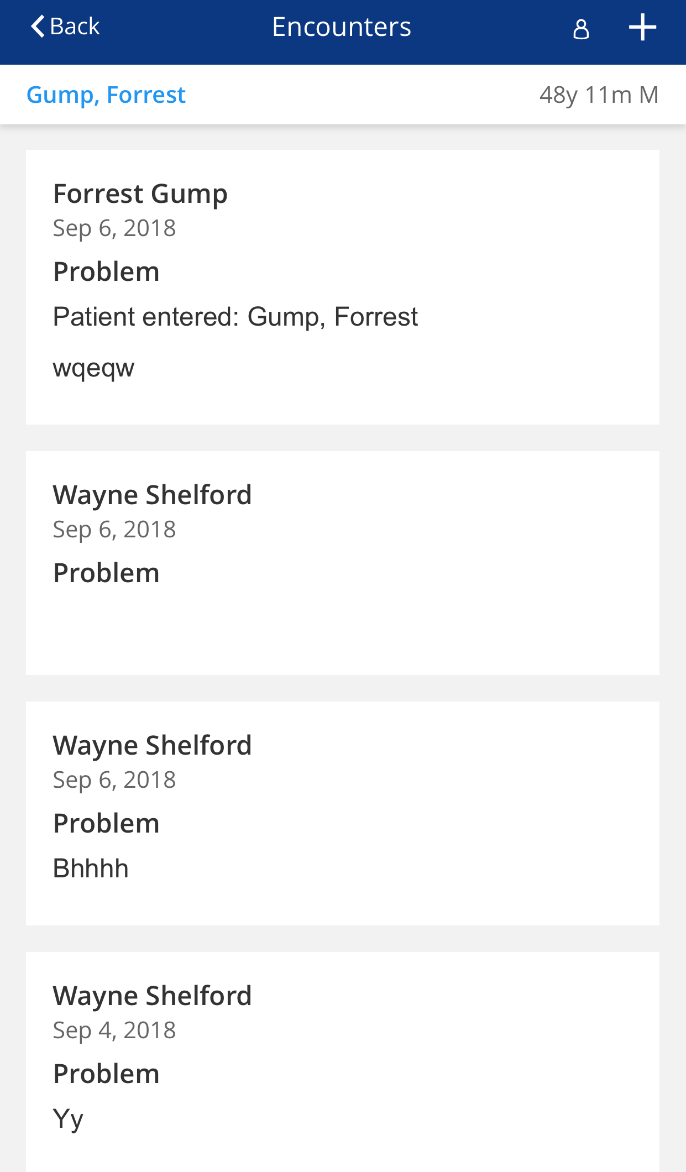
Users can create a new encounter, however, cannot complete actions such as forms, letters, or scripts. Users can add measures.
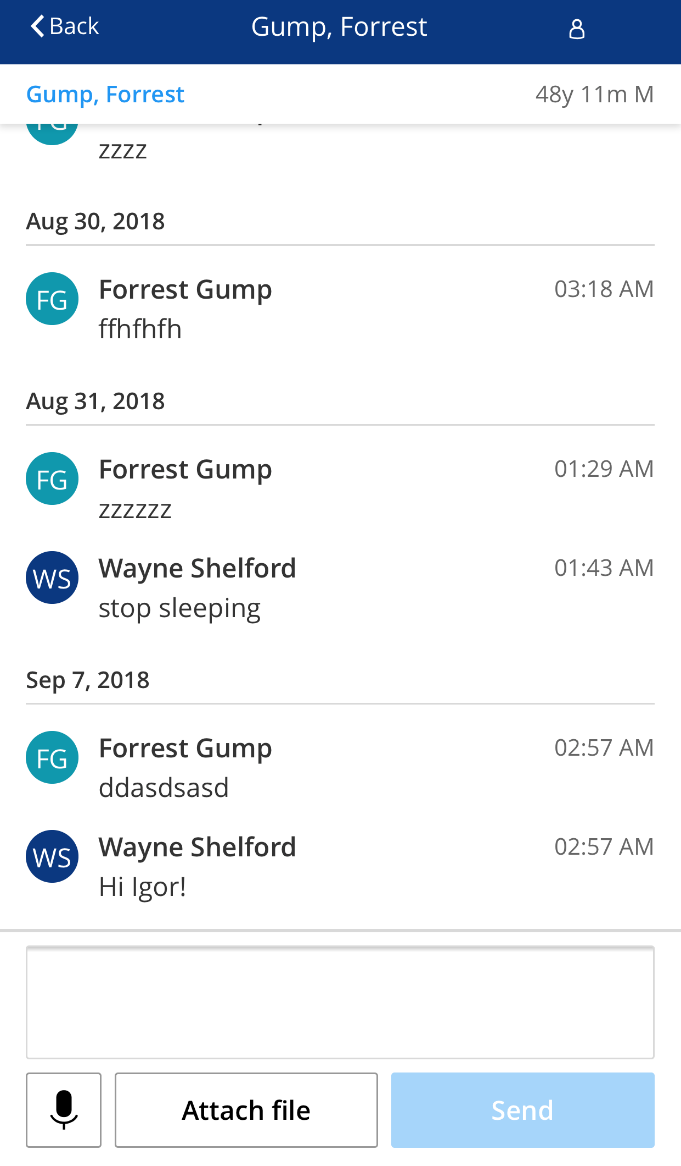
Messages [Disabled - For Info Only]
The Messages screen allows the provider to view the patient’s messages and send new messages to the patient. Attach a file by pressing  and attach audio by pressing
  .
.
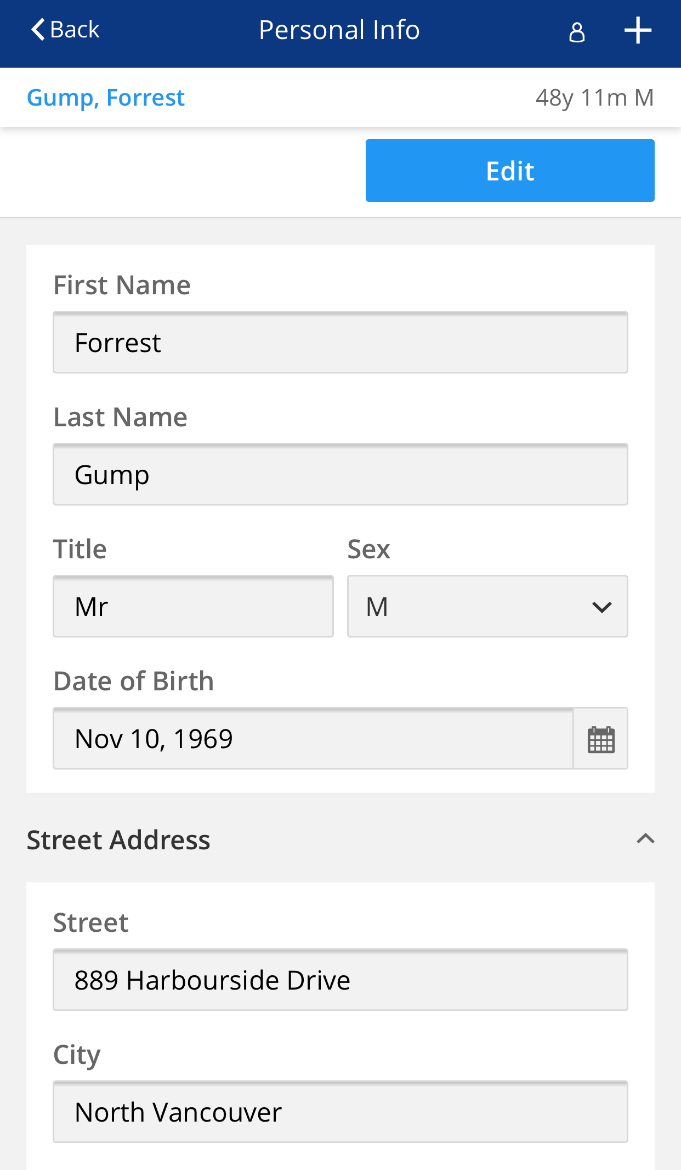
Personal Info
The Personal Info screen displays the patient’s demographic information and can allow the user to edit the address or phone. VCH Profile EMR version will not allow users to edit demographics via Provider Direct.
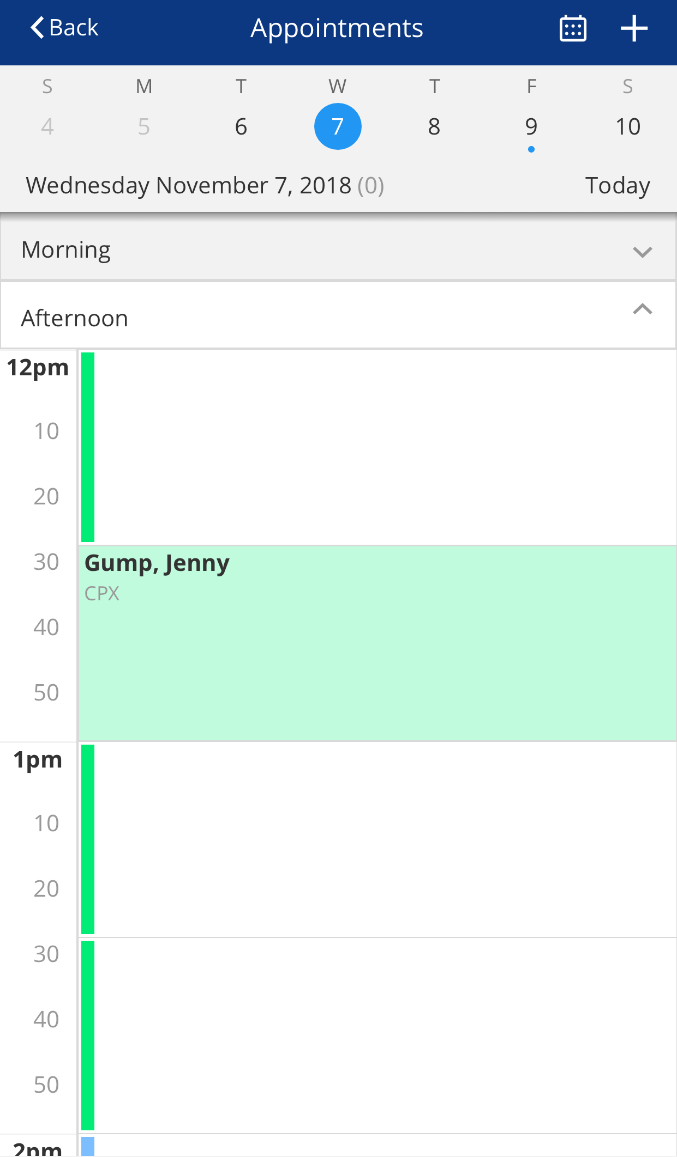
Appointments
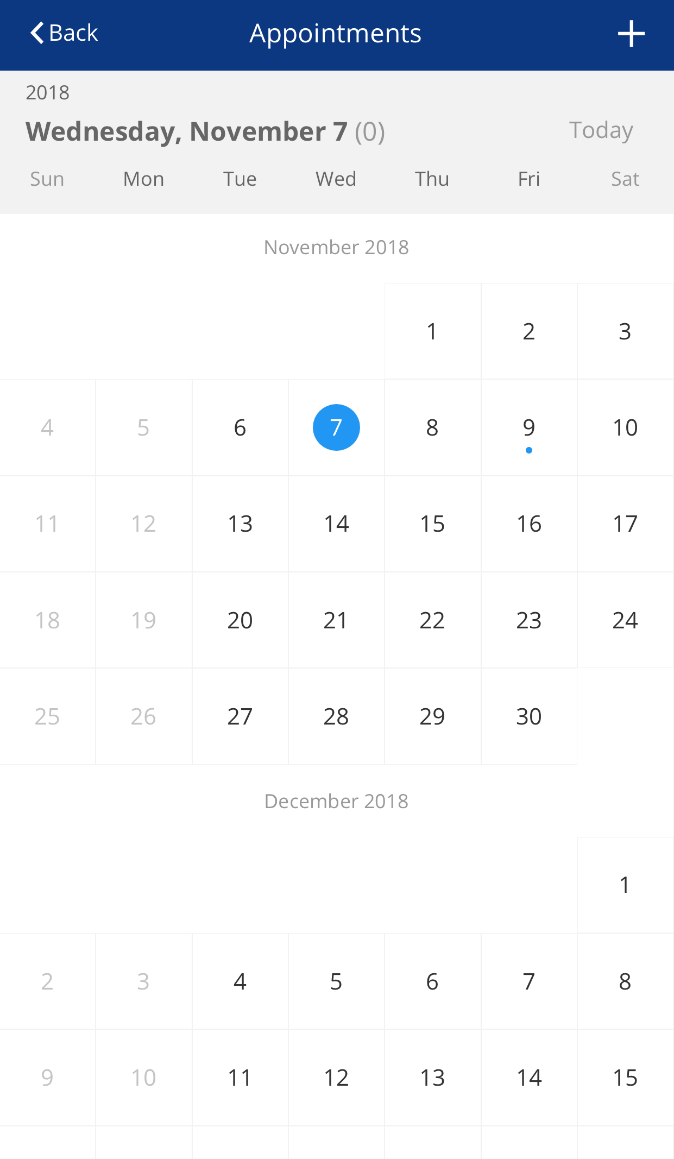
The Appointment screen displays the clinician's appointments for the day, split into the morning or the afternoon. Click  in the top right-hand corner to see the month view, with blue dots signaling appointments.
Note: Users cannot create group meetings within Provider Direct.
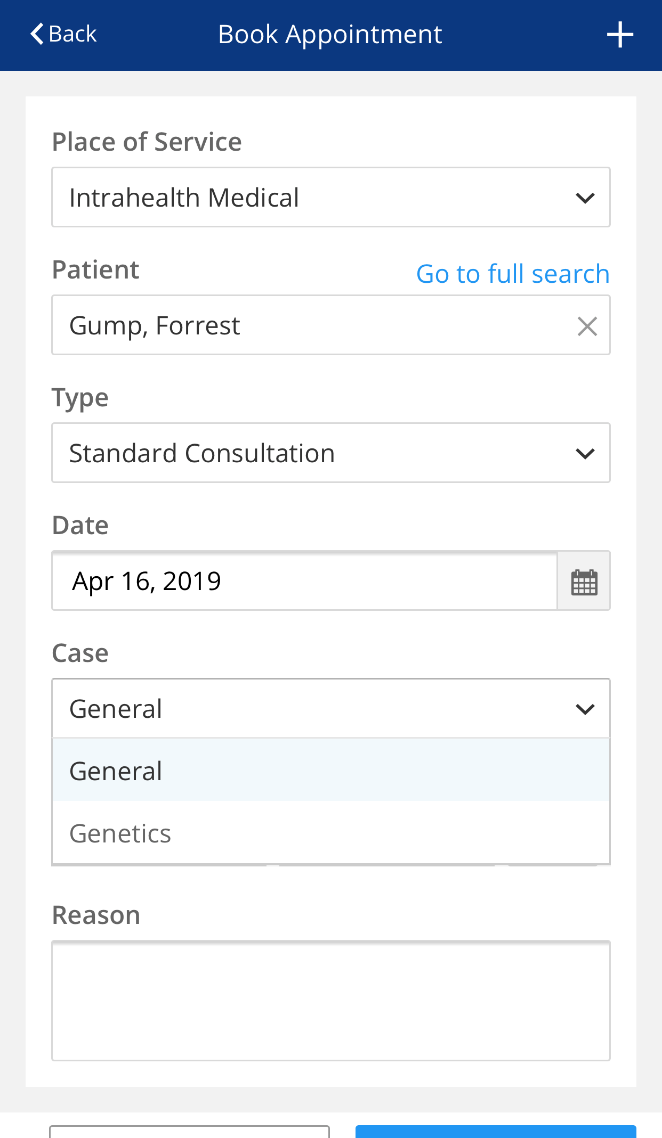
Double-click on an empty appointment slot to create a new appointment.

Tasks
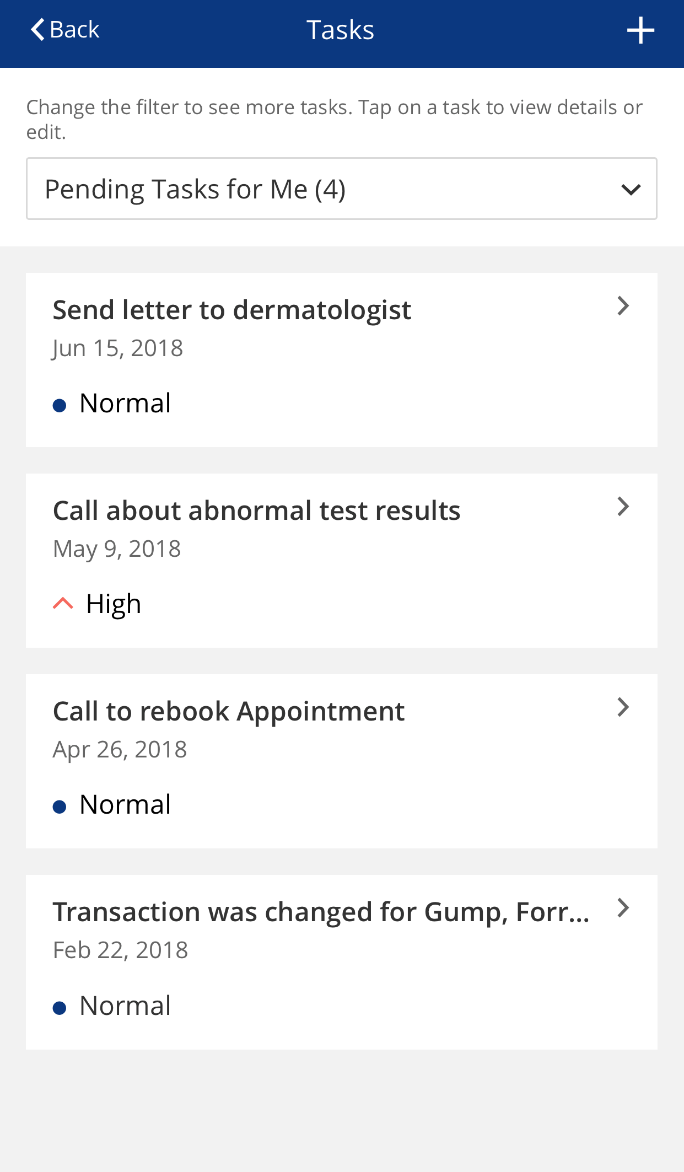
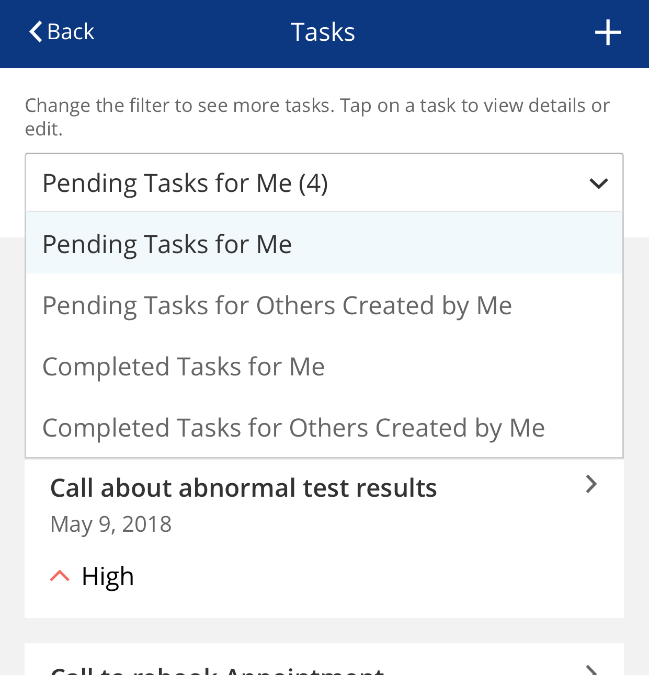
The tasks screen displays pending tasks by default. The other options in the filter can be seen by clicking on the dropdown arrow.
Results
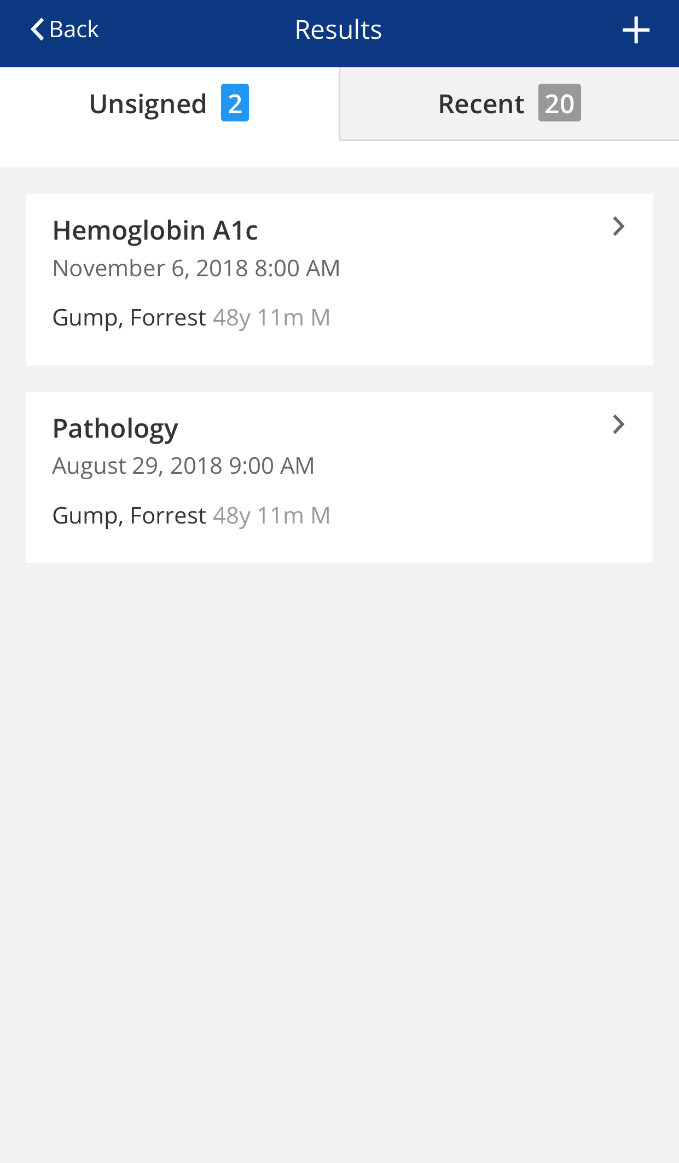
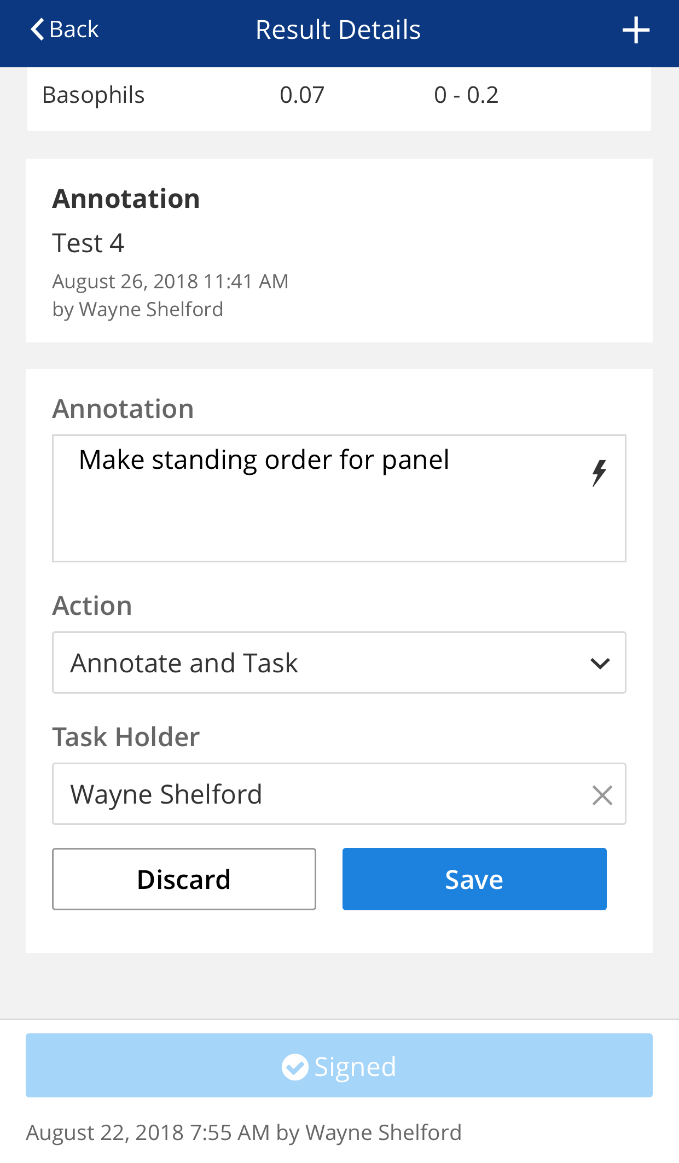
The Results screen displays unsigned transactions and recent results assigned to the current logged on clinician only. There is no all POS view. To view, sign and/or annotate the results, click the transaction.
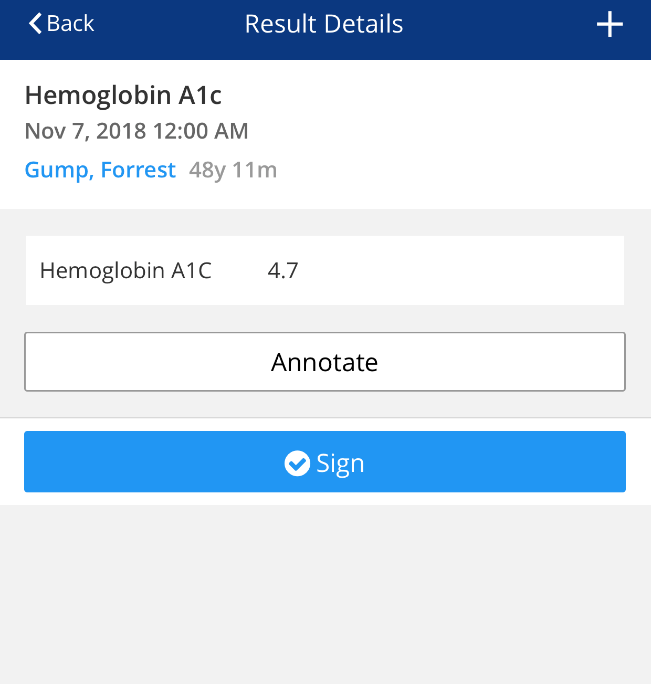
Pressing Annotate will open the Annotation window for entry, and assignation of task, if necessary.
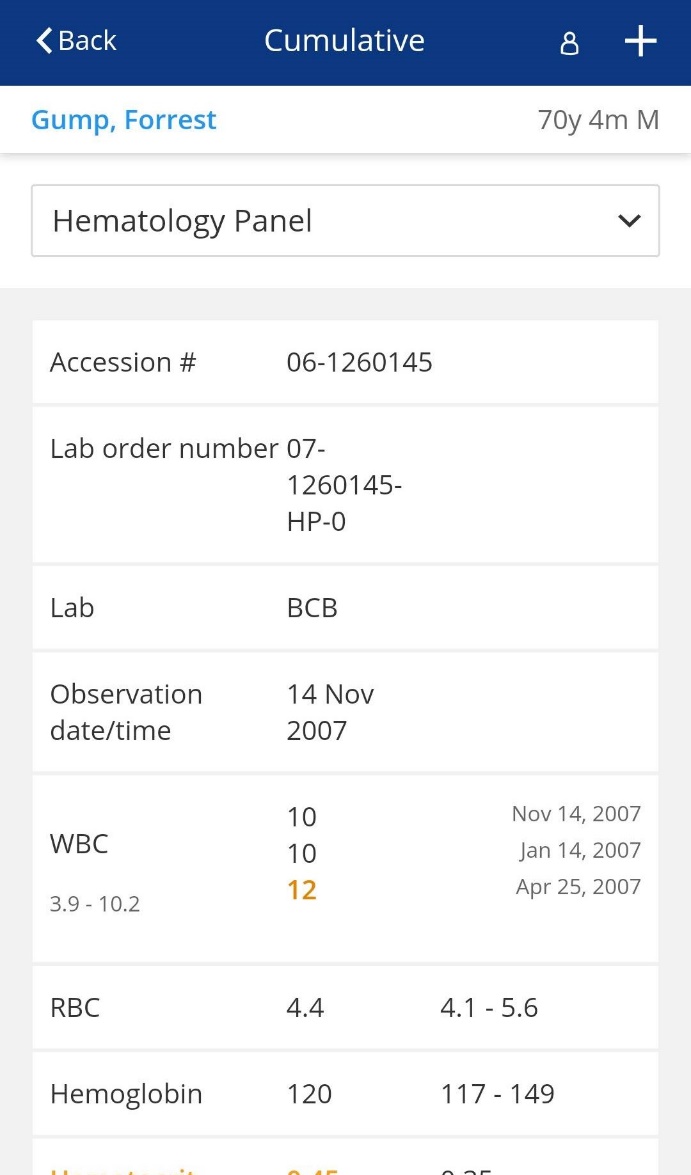
Clicking on a lab result will open a Cumulative screen. If there are cumulative results for a specific test, clicking on that test will display the values listed together with the dates of observation.
Messages [Disabled - For Info Only]
The Messages screen displays messages sent to and received from users and providers as well as patients. Providers can continue a conversation by clicking on the relevant message.
As noted previously, a new message can be created by pressing  to open the New Message Quick Action screen.
Administrators can message users through Profile Work Center / Conversations view. The user can converse back through either Provider Direct website or Profile Work Center / Conversations. This is separate from Profile Chat communications. The Role action for Work Center / Conversations view must be granted to a user for interacting with conversations/messages.
Settings
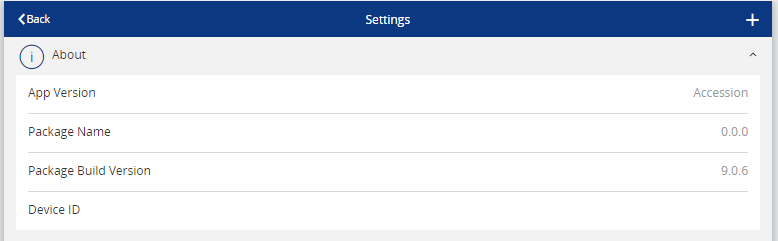
The Settings screen provides details on the Provider Direct application itself.
Send Photo to Profile
The Send Photo to Profile functionality allows the user to take a photo or select a photo from a photo library or album. If the user is logged in to Profile EMR on their computer at the same time as they are sending a photo from Provider Direct, the Shared Files window in Profile EMR will appear, displaying the photo automatically. Otherwise, the photo can be accessed from Special/Shared Files. The provider can then copy the photo to an encounter or anywhere else in Profile EMR.
Videos
Intro to Provider Direct
Note: Any mention of Aero Provider (in the videos below) refers to Provider Direct.
Provider Direct New Features
Resources and Vendor Tickets
Vendor help files:
- Provider Direct User Guide
- Configuring Provider Direct
- Video: Provider Direct Configuration
- Video: Lunch and Learn - Provider Direct Configuration
- How to Log in to Provider Direct
Vendor tickets: