Select Who You Want to Message
Options to Find Who You Want to Send A Message To
Review Your Messages
Link An Encounter/Transaction to A Message
Create a Conversation (Conference) Between 2 or More People
Invite Others
Additional Features of a Conversation/Conference
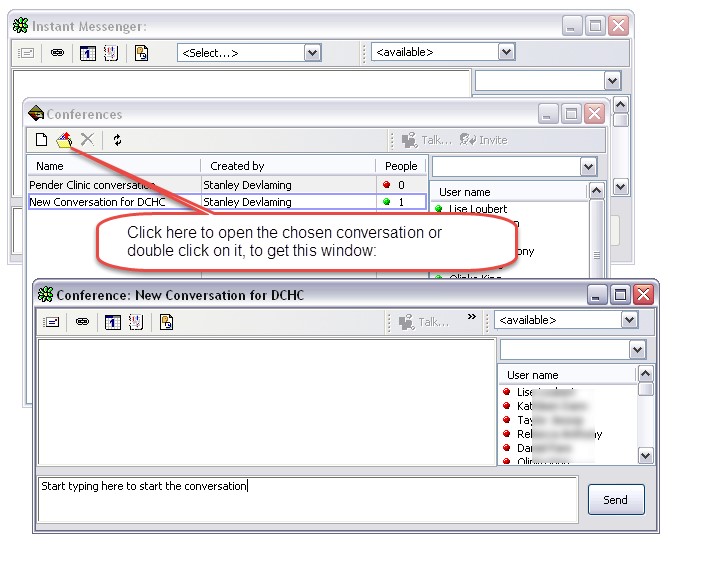
Find your Conversation/Conference
Open a Conversation
Do not use instant messaging instead of a task. A messenger conversation is only tracked within messenger itself, not in the patient's record. Any clinical comments need to be recorded in the patient's chart and do not belong in instant messages.
Click the Messenger button on the menu bar
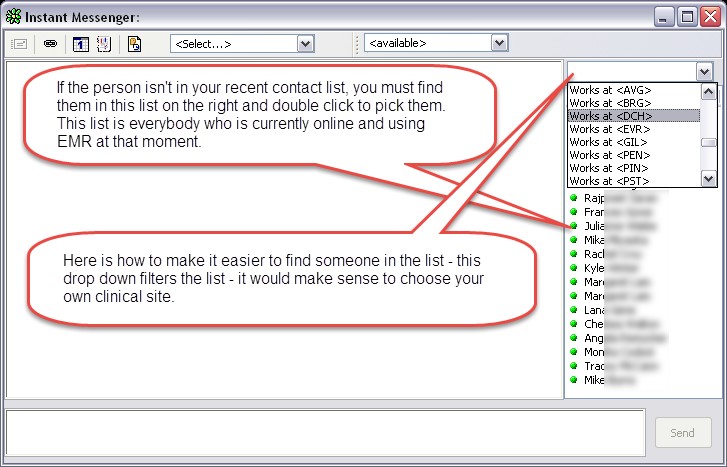
Select Who You Want to Message

Options to Find Who You Want to Send A Message To
Review Your Messages

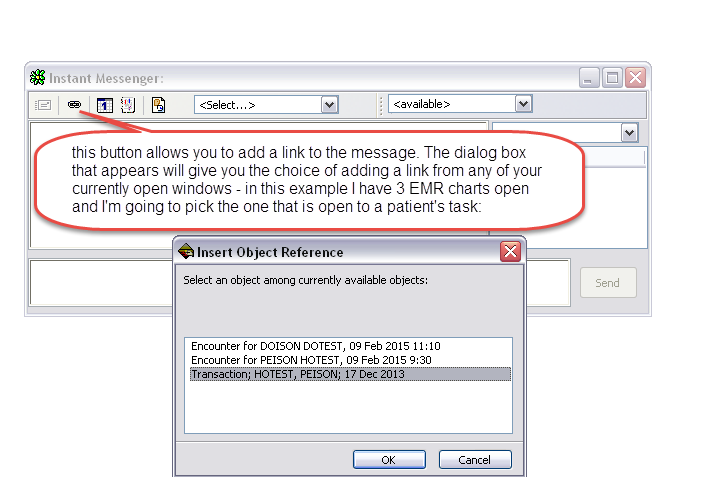
Link An Encounter/Transaction to A Message

Create a Conversation (Conference) Between 2 or More People
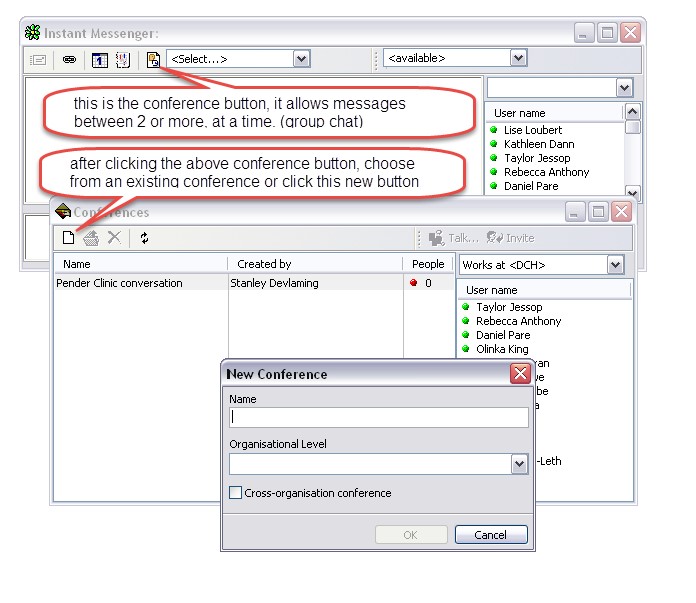
Invite Others
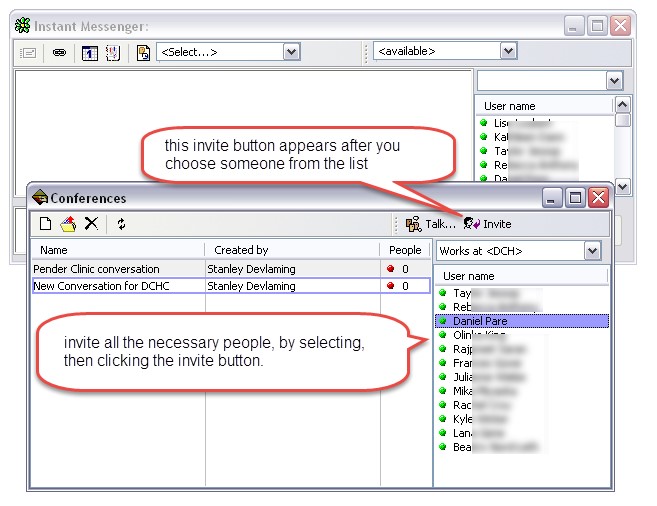
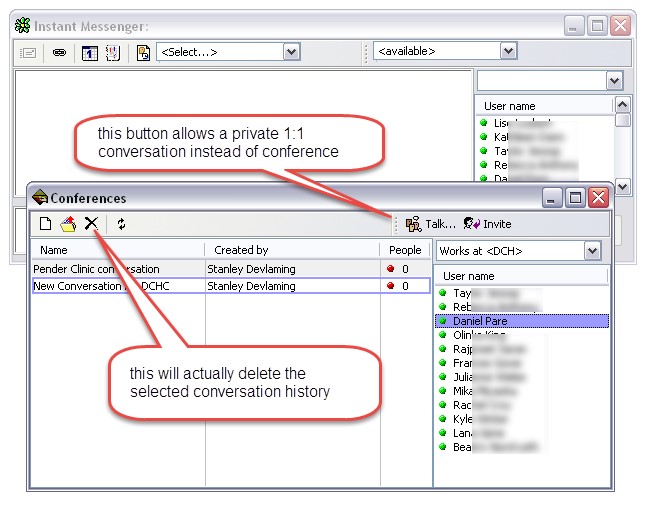
Additional Features of a Conversation/Conference
To close any of your conversations simply click in the upper right hand X.
Find your Conversation/Conference
New messages will pop up and become your active EMR window – both replies and new conversations, even if they are still open in a background window. To avoid accidentally typing in the message box, a sound is played when the message window pops up to alert those who aren’t looking at their screen (which may lead to inadvertently typing in the now active messenger box). Be sure to leave your computer volume to take advantage of this sound alert.
If you instead click on another window it will send the messenger window to the back, along with any other hidden, but open, windows. Remember you can always find these by clicking on the window button:

In the above example 3 different messenger windows are open. This is not necessary since any new message will pop up, both replies and new conversations.
Open a Conversation