Problem
The two most common scenarios requiring a password change are:
- Production: User requests for password change
- Testing: Test case requires specific user accounts as precondition (e.g., physician account)
Solution
Note: User requests for password changes are generally completed by Service Desk.
If using an Enrollment Analyst or Support Analyst role account
- Login with your Enrollment Analyst or Support Analyst role account
- In the toolbar, click on the User Password Reset icon
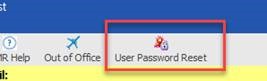
- Use the Find User Field to select the target user. You can either type in the username or use the ellipse button to search for the user
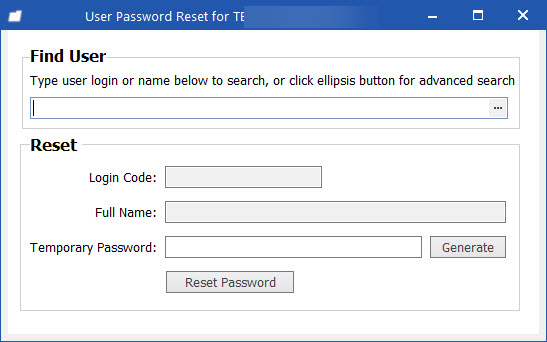
- Once a user is detected in that field, the Login Code and Full Name should auto populate (note: if you type the username in, you will need to pause for 1-2 seconds to detect)
- Either type in a Temporary Password or click the Generate button, which will then populate the Temporary Password field
- Click Reset Password button
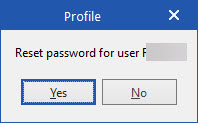
- A popup will ask for confirmation. Click Yes
- A new popup will show that the reset was successful.
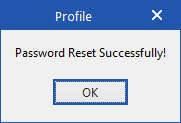
- You can close the popup and the User Password Reset form now.
If using a Sys Admin role account
- Login with a Sys Admin role account
- Open Organisation > People & Places
- Under Organisational Structure, select VCH/PHC EMR to include all POSes (including specialty clinics) in the search
- Tick Include Inactive checkbox to include both active and inactive users in the search
- Enter user information in the Find field (option of searching by code or by description available)
- Click Find
- Double-click user account
- Navigate to Special tab
- Enter New Password and Retype New Password (e.g., Winter2022)
- Tick Force password change checkbox for Production users
Do not tick Force password change for test cases - Click OK
- For testing to log in as the user, click File > Server Login and enter user's UserID and password