Background
The Find Objects Window
Design a Query
Commonly Used Objects
Background
This document outline the fundamentals of the Find Object Queries feature in Profile EMR. The FOQ feature enables users to create queries to search for information within the database. These queries are used to generate a list of patients with a certain criteria. For example, patients that have the disease code of 250 diabetes from a specific Place of Service (POS). These queries can be saved for future use, if needed.
Life Cycle Activities
Follow Profile EMR Workflow Guide.
QA Phase should include:
- Performance review with SA team
- Validation with program stakeholders
The Find Objects Window
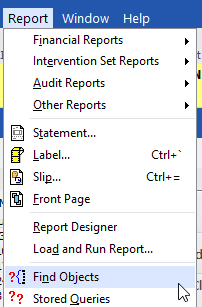
To launch this feature, you go to Reports, Find Objects.
The Find Object window will appear in the Query tab where you will set up your query. You will see an Output tab as well and this is where you will generate your output results.
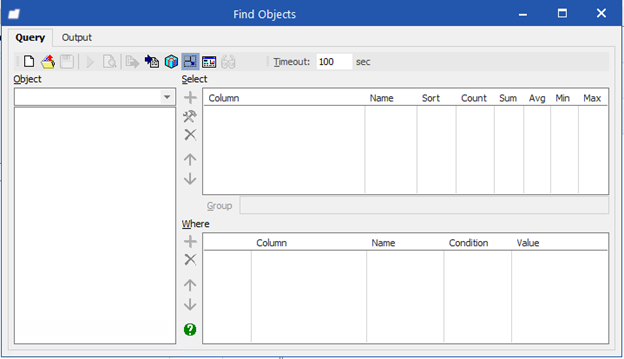
The Object segment
This segment contains different objects that live in the database that we can use to design our query. The Drop down menu contains the Root Objects. Once you have selected a Root Object, all the Parent and child properties become available.
Note: When designing a query, you can only design within one Root Object. You cannot toggle back and front between different Root Object to design your query.
The Select segment
This segment is where you will design how you want your output results to appear. Each property that is place into this segment will appear as a column in the Output tab. You can customize your output results further by using the Sort, Count, Sum, AVG, Min, or Max columns.
The Where segment
This segment is where you will design certain properties to have conditions that need to be met in order to generate your output results by using the conjunction, condition and value columns.
Tips and Tricks in Query Tab
The four methods you can use to add a property:
- With the property in focus, click on the
 button below the corresponding segment (Select or Where)
 - Double-click on the property in the Object segment to add a property to the Select segment
- Right-click on the property in the Object segment and select Add to Select or Where from the pop-up menu
- From the Object segment, drag and drop the property to the Select or Where segment
To alter a property:
 Click to move selected property up in list
 Click to move selected property down in list
 Click to delete selected property from list
When you are ready to execute the search, click  to start running your query. Once complete, system will take you to the Output tab and display the output results.
Tips and Tricks in Output Tab
To modify the Column Settings, click on the Column Properties  button.
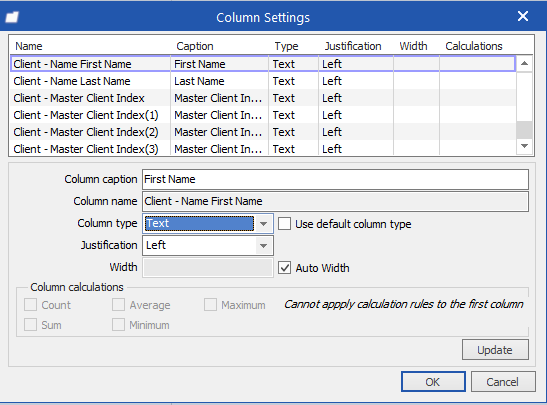
In this window, you can change how the column name appear, type, justification, width and calculations. Just remember to click the Update button before selecting another property.
To modify the maximum number of output results that is returned, enter in a numerical value in the Limit to # objects field.

To export your output results, click on the  button.
Design a Query
The first thing that we will need to do is select our Root Object. To do this, we want to think about the data that we want to pull. For example, I want to generate a list of clients that have an A1C at POS Pender. In this case, Client would be our Root Object as all the properties that we want to use for our query belong the client.
Important! Once you pick a Root Object, your table can only use that Root Object
- Select the Root Object by clicking on the drop down. In this example, we are going to scroll down and look for Client and click on this Root Object to keep it in focus.
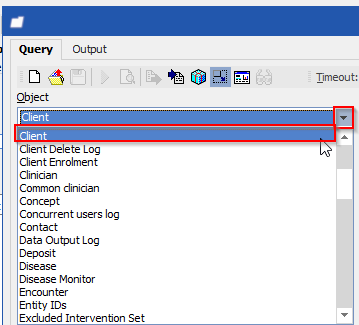
- Once it is in focus, the system will display all parent and child properties available.
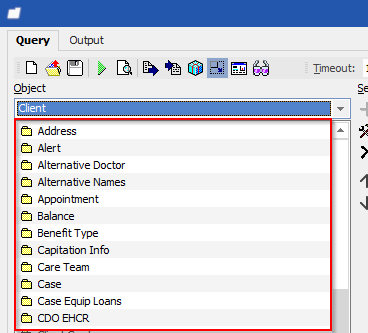
Next, we will need to decide how we want to our output data to appear.
For example, for this query I want my Columns to display as follows:
Client First Name
Client Last Name
Paris ID
File Num
DOB
Investigation Description
POS
Now, we will begin designing our output results by looking through the parent and child properties. Once we have found the corresponding property, drag and drop them into the Select segment or use the other methods listed above.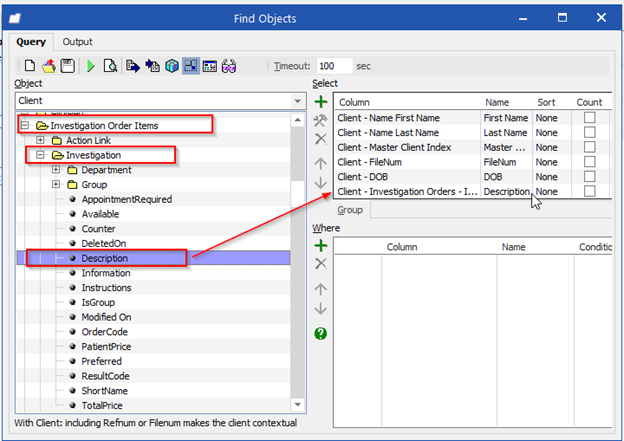
We will need decide on the conditions that must be met in order for a client to appear in our output results. For example, I want to generate a list of patients that has:
Investigation Description: A1C
POS: Pender
Common child properties:
- PARIS ID is under Client > Master Client Index
- Lab results are under Client > Investigation Orders > Investigation Order Items > Investigation > Description
- PC POS is under Client > User 2: Primary Care POS
- Alt POS is under Client > User 3: Alternate POS
Often times, the conditions that we wish to meet are already in the Select segment. If they are, you can drag and drop them to the Where segment. Alternatively, you can also go through the folders and fields to find the conditional properties you wish to use and then drag and drop them into the Where segment.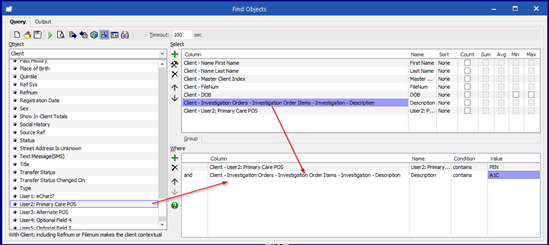
Then, we want to design our conditions. The first column of the Where section contains 4 conjunctions and, or, also and also not that can be used to connect our data. In this example, I will be using the “and” conjunction as I wish for both of the conditions to be met. Under the conditions column, I will use contains for the POS Code: PEN and the Investigation description: A1C
Hint: Use condition of contains
Hit the Run button and a list clients will appear that have their PC POS as PEN and has had an A1C done.
Query Order Tips and Tricks
The order that criteria are specified can significantly change the results of a query.
The query where
Sex = F
AND
Age < 50
OR
Usual Doctor code = SDEVLAMI
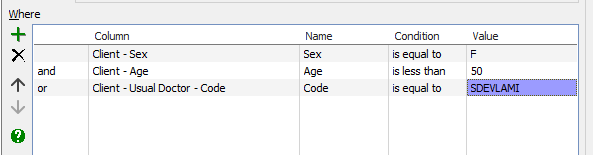
will return patients/clients who are female and under 50 as well as any patients/clients with usual clinician SDEVLAMI regardless of sex or age.
The query where
Age < 50
OR
Usual Doctor code = SDEVLAMI
AND
Sex = F
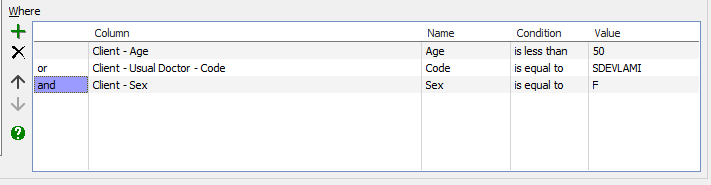
will return a list of all female patients/clients who are either younger than 50 or who’s usual clinician is SDEVLAMI.
Adding another search function, will change the query again:
The query where
Age < 50
OR
Usual Doctor code = SDEVLAMI
AND
Sex = F
OR
First Name = William
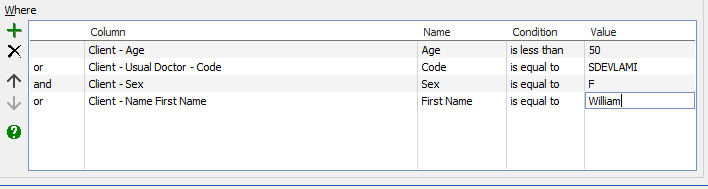
This query will return all female patients/clients under 50 or who’s usual clinician is SDEVLAMI plus anyone named William regardless of sex, usual clinician, or age.
HOT TIP! ‘Patient (client) first name is equal to William’ will not return patients/clients who are registered with an initial such as ‘William B.’ or with dual names such ‘William John’. To match all instances use the Starts with option as a condition.
Also Conjunction
There might be a situation when you are attempting to search for more than one criteria match in the same object. The ALSO operator will create a secondary query within the statement.
In this example, patients/clients might have a problem with description ‘asthma’ AND a second problem with description ‘diabetes’.
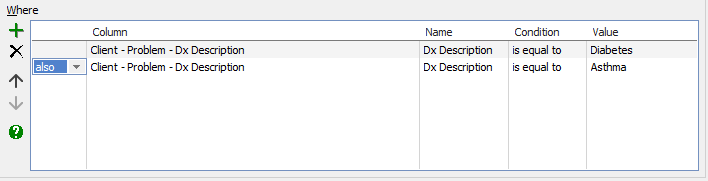
Using AND operator in the above example would look for a match for both criteria specified in a single record. It will return a list of patients/clients with problem description recorded as ‘diabetes and asthma’.
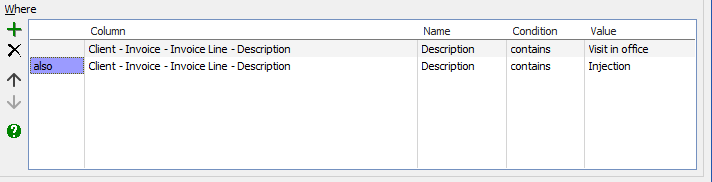
Another query example will return patients/clients that have an invoice billing for an injection and a second invoice billing for a visit in office.
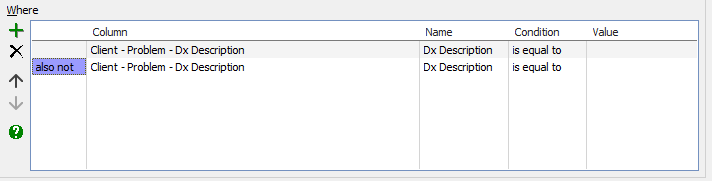
ALSO NOT operator will search for all patients meeting the first criteria that do not meet the second criteria.
For example, you can run a query that lists patients/clients who have diabetes but have NOT been diagnosed with asthma.
HOT TIP! Using contains condition will list patients/clients who have word ‘diabetes’ is used anywhere in the problem description field. Using equals to would limit search to patients/clients where problem description is recorded exactly as ‘diabetes’.
Is in Condition
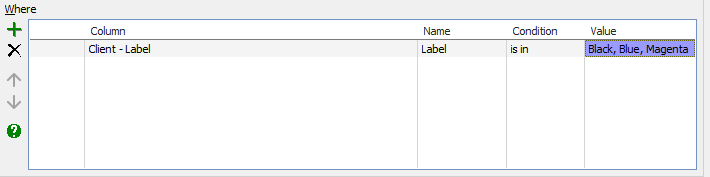
IS IN condition allows you to specify multiple values as possible matches for a criteria in a single line.
For example, you can create a simple query to search for all
patients/clients with a label of either black, blue, or magenta.
IS NOT IN is the opposite – it will return any results that are not a match to any of the specified values.
Listing Unique Records
Adding the user-defined function DISTINCT will cause only unique records for the selected property to be returned. Use that function only on a column that is a unique identifier and make sure that it is the top column on the list.
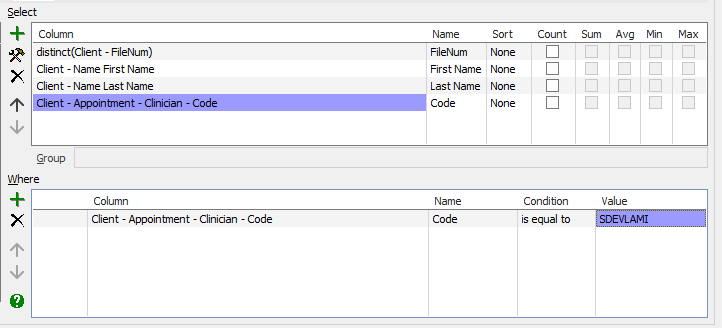
This query example will return a list of any patients/clients who have an appointment booked with SDEVLAMI. Patients/clients will only appear once on the list, however, they might be seen more than once by this clinician.
To add the DISTINCT function:
1. Select the line in the Select area and click on the tool
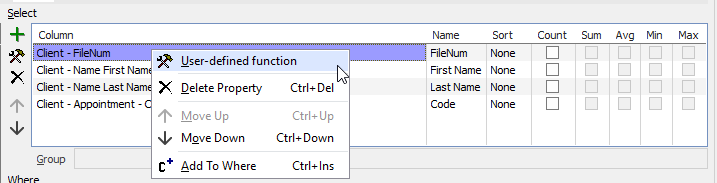
2. Type ‘distinct’ in front of (&column)
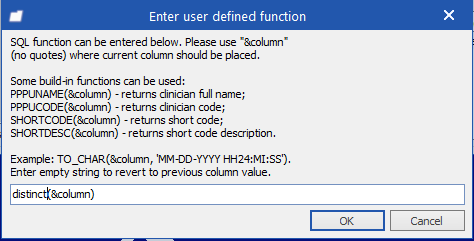
3. Click OK
Using Relative Dates
Instead of a specific calendar date, you can enter a relative date that will be estimated each time the query is run.
In the Find Objects’ window select the line in Where area. In the following example, the query will return patients/clients that have not been seen in last seven years:
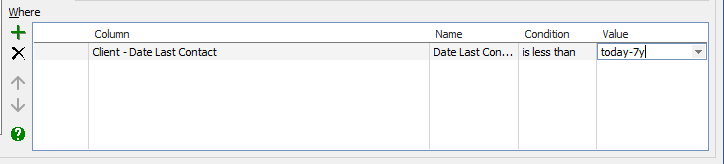
Use one of the following options in the Value column:
today
- inserts today’s date
today - xd
- inserts today’s date minus x days, e.g., today-10d
today - xw
- inserts today’s date minus x weeks, e.g., today-2w
today - xm
- inserts today’s date minus x months, e.g., today-6m
today-xy
- inserts today’s date minus x years, e.g., today-7y
Dynamic Entry Values
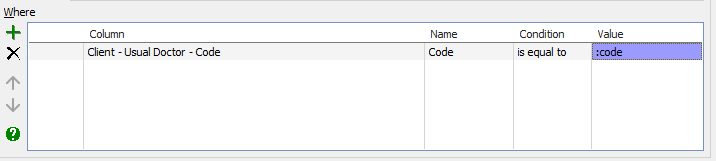
You can enter a variety of dynamic entry values which resolve at run time by entering :param (a colon and parameter) under the Value column. This will prompt for input of a value when the query is run.
Entering only : will work, but assigning the parameter description will provide better guidance to the user as to what they should enter in the fields to be used as value.
In the example below, the query is setup to return a list of patients/clients who have the specific usual provider:
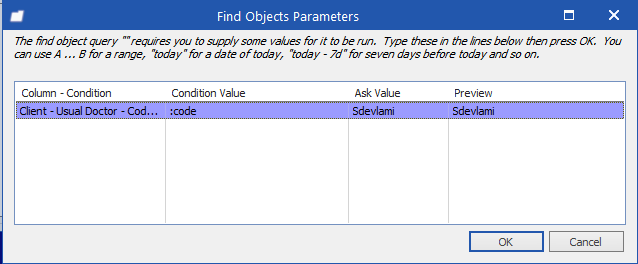
The user will be asked to provider the usual doctor’s code during run time:
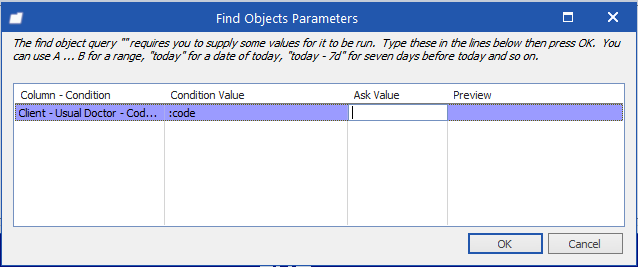
A code for any existing provider can be typed in the Ask Value field creating a query for this specific provider. In our example, ‘sdevlami’ is typed for the provider’s code (Preview column will autopopulate):
Using Ranges
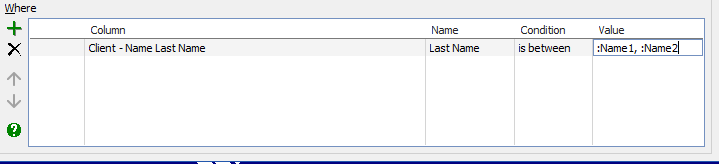
You can also use specific range for your returned values. For example, you can find all patients/clients with last names between A and C. Create a query with IS BETWEEN condition that will use two :param entries:
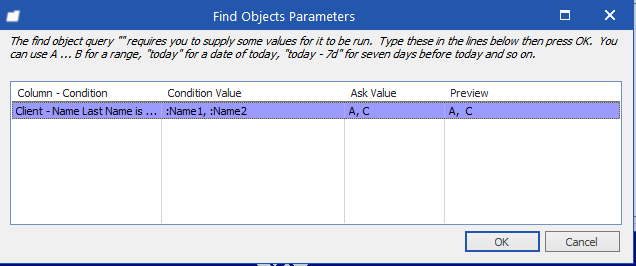
When you run this query, you need to fill in the information, in this example the alphabet letters that create a range:
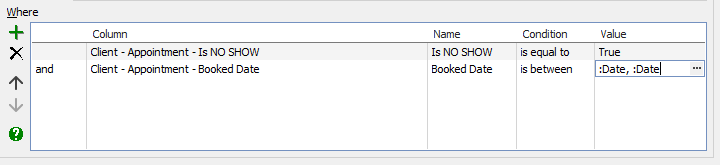
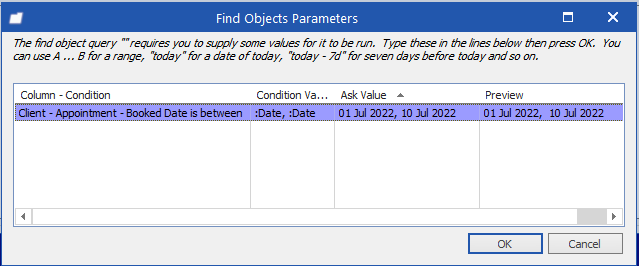
Process is similar for the situations where date ranges need to be used:
When running this entry, you will enter the start and the end date:
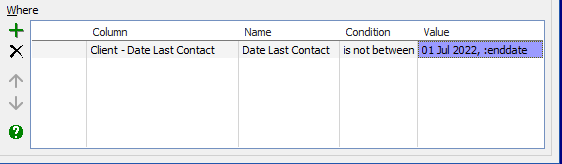
When using more than one criterion as it is typical for a range, one element can be static and the other can be dynamic. For example, listing of billing that starts at the beginning of calendar year but the end date will be modified by the user each time this query is run can be set this way:
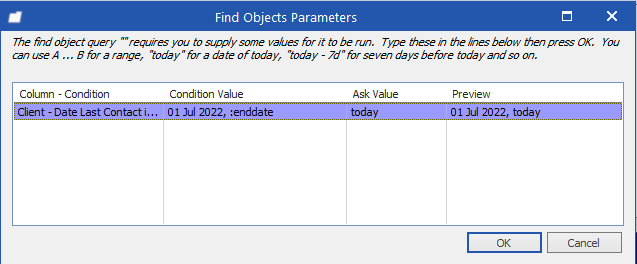
When running this query, you need to enter only the end date which can be a specific date or simply today’s date as in example below:
It is also possible to prompt the user for a specific portion of a search term when the rest of the term is static. Use the ?ask? statement as a dynamic part. For instance, create a FOQ where the user is allowed to specify only whether they want ‘Visit in Office’ or ‘Counseling in Office’ as a return for searching for service codes. The FOQ should be designed as follows:

When running this query, user will be prompted to provide information in Ask Value column:

Commonly Used Objects
| Object | Used For |
|
Organisational Structure > Clinician Group |
Clinician group membership (e.g., task groups) |