1. Login to Production EMR using an account with a Sys Admin or Support Analyst role
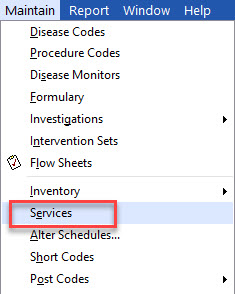
2. Go to Maintain > Services
Search for a Service Code
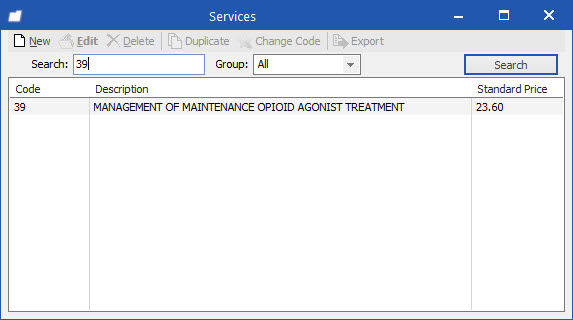
Enter the Service Code to add, update or delete in the Search field and click the Search button
a. If the Service Code does not already exist (no search result is returned), follow the steps below in "Create a New Service Code"
b. If the Service Code does exist, follow the steps below in "Modify an Existing Service Code" or "Delete an Existing Service Code"
Create a New Service Code
1. On the Services screen, search for the new Service Code to ensure it does not already exist
2. Click the New button and the New Service screen is displayed
3. On the General tab, enter the new code in the Code field (review other Service Codes for naming protocols)
a. Enter the description in the Description field
b. Optionally, enter a more detailed description in the Full Description field
c. Enter "VCH" in the Short field (this indicates a non-standard Service Code created by VCH)
4. If the new Service Code is billable (this information is provided by the requestor), on the Financial tab enter the billable amount in the Standard Price field
Documentation Question: When should a Valid Date Range or Charge Rates or other financial information be entered?
5. Click the OK button to save the new Service Code
Note: If the Service Code already exists, a message is displayed indicating that.
6. Using the generic ADMIN user account, repeat these steps in EMR VTM so both the Training and Self-Training environments will be updated on the next refresh
Modify an Existing Service Code
1. On the Services screen, search for the Service Code
2. Double-click on the returned Service Code and the Edit Service screen is displayed
3. On the General tab, the Description, Short, Full Description, Status and other information can be updated
4. On the Financial Tab, a new Valid Date Range can be added with new corresponding financial information
a. Click the New button beneath the Valid Date Range table and enter a new Start Date for the update to take effect
b. Update the Standard Price
c. In the Charge Rates table select the MSP row and update the Charge Rate
d. Click the OK button to save the changes
5. On the Services screen, click the Search button again to verify the Standard Price has been updated
6. Using the generic ADMIN user account, repeat these steps in EMR VTM so both the Training and Self-Training environments will be updated on the next refresh
Delete an Existing Service Code
1. On the Services screen, search for the Service Code
2. Select the returned Service Code (do not double-click) and click the Delete button
3. Confirm the deletion
4. Using the generic ADMIN user account, repeat these steps in EMR VTM so both the Training and Self-Training environments will be updated on the next refresh