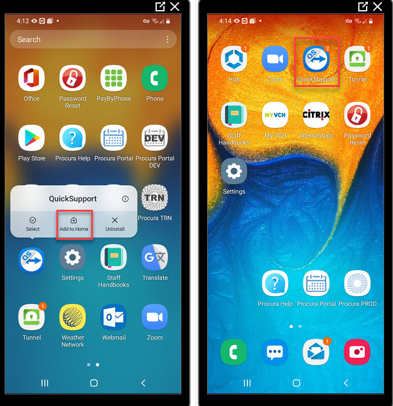
This article will help support the activity of walking a user through the process of setting up the QS (QuickSupport) App on their mobile device and adding a shortcut to their home screen. Examples of why this app requires setup after the user has received the phone:
- For older devices, the QS app has been pushed to the phone by WS1 or MDM and has not been set up.
- The QS app was removed and reinstalled (could be by the user or support agent during the tech support call) and has not been set up.
Topics in this article:
Add QS Shortcut to the Home Screen
Initial Setup
1. Locate the App in the App Drawer.
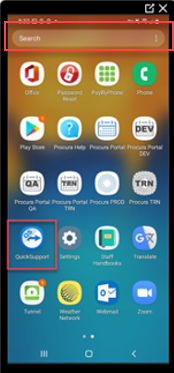
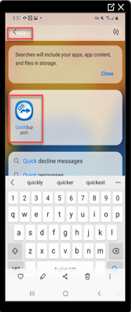
Ask the user to swipe up on their screen to access the App Drawer, find and tap on the QS app to open it. Or, swipe up on their screen and type "quick" in the search bar.
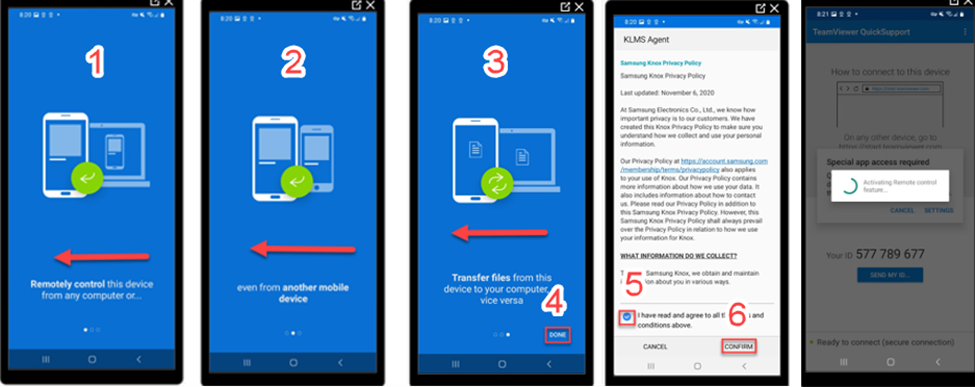
2. EULA and DPA Acceptance.
Agree and Continue.
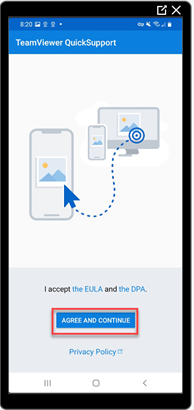
Swipe left 3x > check off agreement statement > confirm. The user will see the “Activating Remote control feature” message.
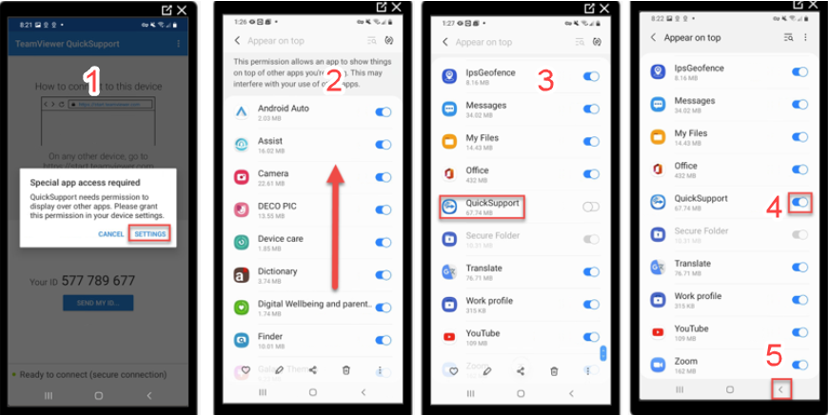
3. Enable "Appear on top" permission
Special app access required message. QS needs the “Appear on top” Android setting to be enabled in order to function properly.
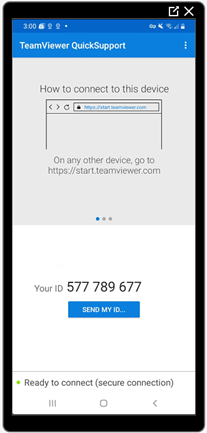
4. Connect to QS for the first time.
Ask user for for ID and enter in TeamViewer desktop.
Have user tap through the below messages to begin remote support.
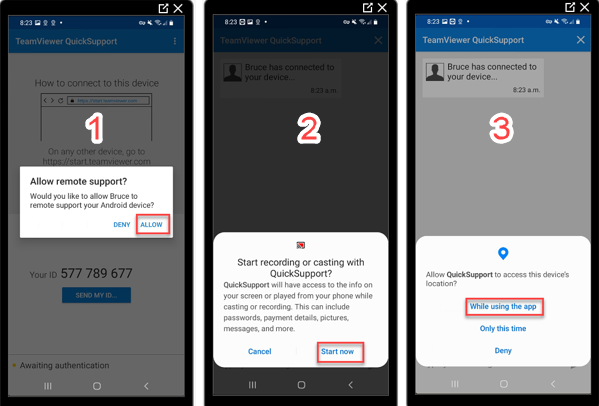
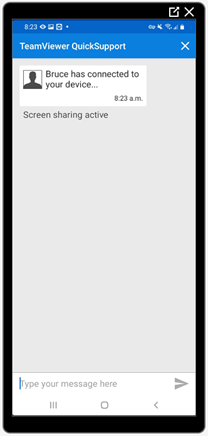
User should see that the support analyst has connected, and you should see the Procura phone screen in TeamViewer.
Add QS Shortcut to the Home Screen
Locate the QS icon in the App drawer > press and hold to display options > tap “Add to Home”.