Depending on the existing settings in the Android Phone the user may see the following Open with pop up when the Map icon is tapped in Procura Mobile. The user should;
- Select Maps.
- Tap Always.
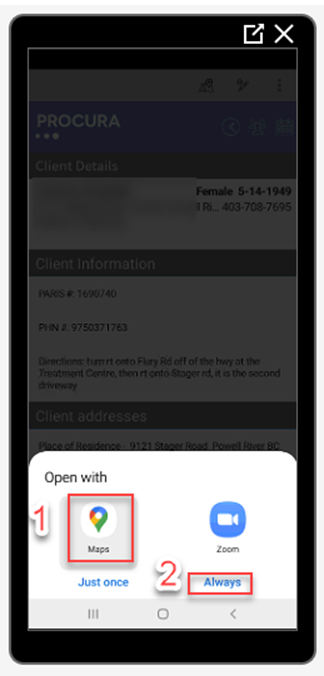
Once the steps above are followed then Google Maps is correctly linked to the Map icon. When the Map icon in a client visit is tapped, Google Maps will launch and search for the client’s address.
If the user mistakenly selected Zoom and Always then an incorrect linkage was set and the Zoom App will launch when the users taps on the Map icon. If this is the case then the linkage needs to be reset by performing the following steps;
- Go to Device Settings > Apps > Zoom > Set as default > Clear defaults
- Return to Procura App, open a visit, and select Map icon
- Select Maps and Always.
- Google Maps should now open.