Background
Process for all Macro Print Variables Adds or Updates
Create a Macro Print Variable
Introduction to Macros Print Variable Functions
Look up the Termset and Concept Code
Term Cross References
Modify Macro Print Variable Template to Pull Latest Lab Result with Date
Background
This document outlines the steps on how to create macro print variables that will pull in lab results.
Process for all Macro Print Variables Adds or Updates
- If the request involved editing or deleting an existing Macro Print variables, always back up first and save the file to the SO folder. In case of any issues, we can use this file to re-import/revert it to the state before the changes.
- Regardless of the type of change, using the generic ADMIN user account add the changes done to EMR VTM. For ease, the Macro Print Variables can be exported from production and imported into VTM. This is so both Training and Self-Training environments will get this update on next refresh. Note: no need to back up the Macro Print Variables from VTM before applying the changes.
Create a Macro Print Variable
- Login to Profile EMR.
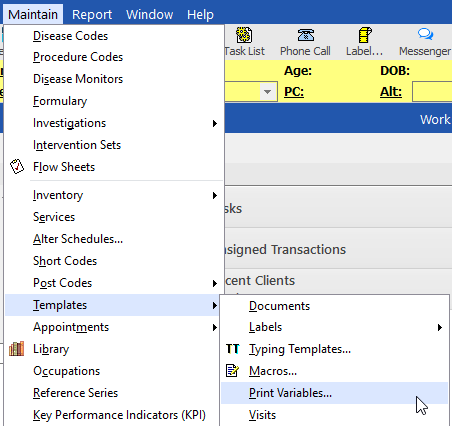
- Go to Maintain, Templates, Print Variables.
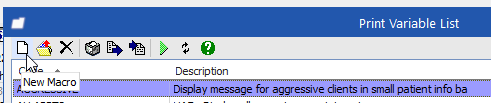
- Click on the New Macro icon.
- Macro Properties window will appear. Complete the following fields:
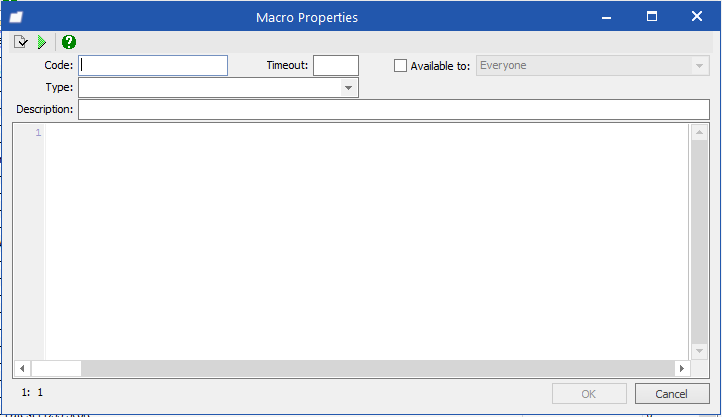
Code
This is what the user will look for under the Macro Print Variable section to generate the macro created.
Naming Code Standard: Code to pull latest results should always begin with Latest
Ie. LATESTA1C
Description
In a few words describe what this macro print variable will output.
Naming Description Standard: Description to pull latest results should be writing in the following manner [Type] - [Lab name] (inserted values)
Ie. Result - Albumin (latest value and date)
Result - Albumin (last 2 values and dates)
Result - Albumin (latest date only)
Result - Albumin (latest values only)
Available to checkbox
Ensure you tick this box and select Everyone when your typing template is ready for everyone to use.
Body
This is where you will write your macro.
Note: The Template outline in this document can be copied and modified for future use.
Introduction to Macros Print Variable Functions
In order to use this macro, let us begin with understanding what each part of the macro does.
First, we need to set a date range. In the macro template below we are setting the date range from 30 years ago to today.
‘Set date range today – 30 years
aDateTo = Now
aDateFrom = DateAdd("yyyy",-30,aDateTo)
aDateTo = DateAdd("yyyy",1,aDateTo)
Second, we need load the lab result we wish to use. The codes that you put in the two “” below will tell us which termset and concept code to use when pulling the lab result.
‘Load latest results based on the termset and concept code
Set aResult = Patient.GetLatestHRI("", "", aDateFrom, aDateTo, 1)
if not aResult is nothing then
Set aResultContent = aResult.Content
aResultContentValue = aResultContent.AsString
aResultDate = aResult.ObservedOn
Third, we will need to concatenate this value so that the result value and the date appear together.
‘Concatenate value with results date (show value with date)
aResultDate = Profile.FormatDate(aResultDate,"DD-MMM-YYYY")
theResult = aResultContentValue & "; (" & aResultDate & ")"
else
theResult = "No Result Found"
end if
Finally, we want the macro to output what we have concatenated which is the Lab Result Value and the corresponding date.
‘Output the lab result value with date
Variable("PrintVariable").Value = theResult
Look up the Termset and Concept Code
So now that we know which macro print variable template to use. We need to look up the term set and concept code that corresponds to the lab result we want to use.
There are 3 ways of doing this:
Term Cross References
For all term sets that have been cross references.
Go to Maintain > Term Cross References.
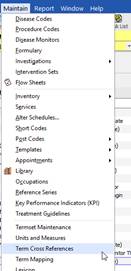
The Term Cross Reference window will appear. A list of term sets will appear here. Look for the Term that you wish you use. I will be using Albumin Term for LIFELABS Termset for this example.
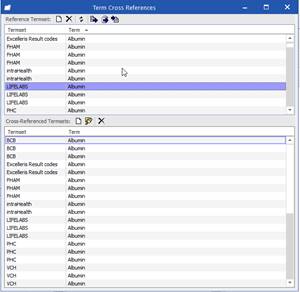
Note: If the term set you are looking for does not appear in the Cross Reference list, please use the other options to look for your term set. Not all term sets are cross referenced. See Terms and Results.
Upon finding your term set, you can hover your mouse over the term set and a bubble will appear with the Term set and Concept code information.
Alternative, you can double click on the Term set which will trigger the Search for Terms window to appear. The Base concept field will contain the information you are looking for as seen below.
Term set: LIFELABS
Concept code: 1751-7

Terms
For Terms that are not cross referenced.
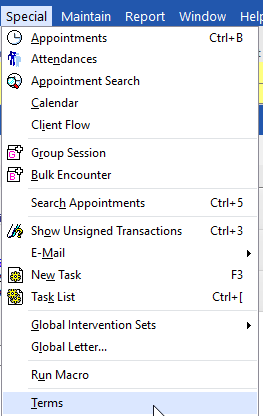
Go to Special > Terms.
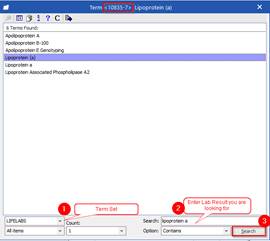
The Term Selector window will appear. In this window, you will need to select which term set you would like to search. For this example, I will be using LIFELABS to search for lab result Lipoprotein (a). Once you are ready, hit the search button and a list of result will be returned. Click on the result you wish to use and you will notice in the window title the Concept code will be listed as seen in the image below.
Results
Another place within EMR that you can find your concept code is in a client’s medical record. In the occasion that you have been provided a client that has the corresponding results that you wish to pull.
You can go to the client’s medical record, results section. Locate the result you wish to use. Click to Cumulative view. Right click on the last result that appears under the date column and select Cross-Reference Terms.
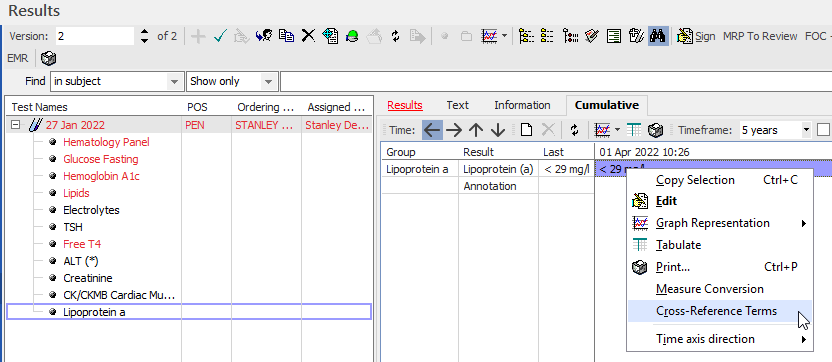
The Search for Terms window will appear. In the Base Concept field, you will find the Term Set and Concept code information you are looking for.
Term Set: LIFELABS
Concept Code: 10835-7
Modify Macro Print Variable Template to Pull Latest Lab Result with Date
So now that you have found the Term set and concept code(s) that you need. Copy and paste the Macro Print Variable above and modify the second part to contain your codes.
The term set code will go into the first parenthesis and your concept code will go into the second. Like so.
‘Load latest results based on the termset and concept code
Set aResult = Patient.GetLatestHRI("LIFELABS", "10835-7", aDateFrom, aDateTo, 1)
if not aResult is nothing then
Set aResultContent = aResult.Content
aResultContentValue = aResultContent.AsString
aResultDate = aResult.ObservedOn
When you are ready to save your work, hit the OK button. You are all done.
Now it is time to test your work on a Form:
- In Object Inspector, double-click on PopulateValue
- Under Print Variable, search for "Macro"
- Expand the folder to search for the Print Variable you've just created
On testing, this is what appears.
