Request a Course Shell in the LearningHub (LHub)
Manage Courses
Set Course as a Favourite
Basic Information
Update Course Settings
Make the Course Searchable or Hide from Search
Open to Access
Send a Link to the Course
Make the Course Searchable
Request a Course Shell in the LearningHub (LHub)
As soon as you know you are developing a course, request a Course shell
- Go to the Contact page http://learninghubhelp.phsa.ca/contact
- Scroll down to the Submit a Help Ticket
- Click New Course Request
- Use this convention for course name: VCH PARIS Course Name (User Group)
- In the Description, copy and paste this text:
Please make IMITS Education IMITS (imitspccommunity@vch.ca) the Course Owner and make me both Course Manager and Teacher in Moodle.
Manage Courses
- Log into the LearningHub
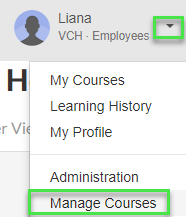
- Select the dropdown in the top right > Select Manage Courses
-
Set Course as a Favorite
- Hover over the Course Name
- Click on the star icon to set the course as a favourite, it will turn yellow
- The course will now appear in the Favourites tab for quick access while you are working on it.
Update Course Settings
Basic Information
- Select the Course
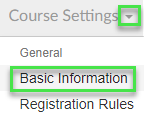
- Select Course Settings > Basic Information
- Select Managed
- Fill in the following fields
- Course Branding - Click VCH
- Description/Objectives – Enter the objectives here (not in Moodle)
- Course Contacts – Leave as IMITS Education, imitspccommunity@vch.ca
- Target Audience – The audience should also be clear in the name of the course
- Other Information – This information will be sent in the confirmation email after the learner registers
- Keywords – Enter any keywords or acronyms a learner might search by (for example, you need to enter quick view and quickview because LHub will not find variations with spaces) - Click Save Changes! Important Note: You must Save Changes on every tab or you will lose your work!
Make the Course Searchable or Hide from Search
Registration Rules
While you are developing your course, hide it from the search results and only make accessible through a URL
- Click Registration Rules
- Select Accessible via private link only while you are developing the course or if you do not want the course to be searchable
- Save Changes
When the courses is ready for user to search, include it in search results and allows users to register themselves
- Click Registration Rules
- Select Allow self-registration via search so learners can find your course
- Save Changes
Open to Access
- Click Open to Access
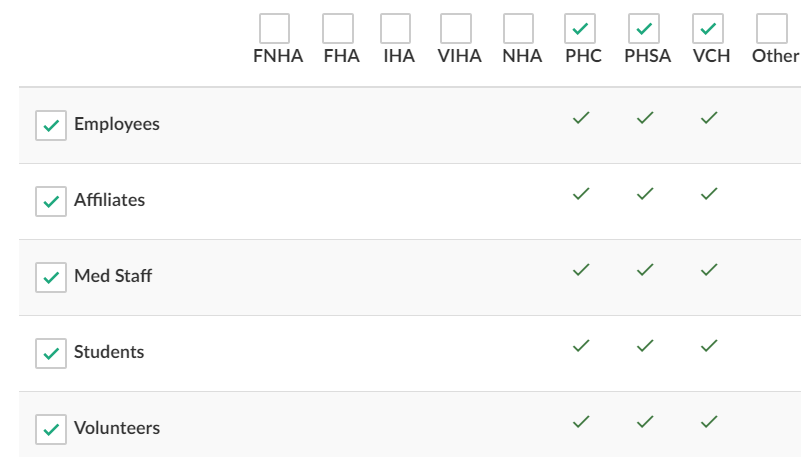
- Select PHC, PHSA and VCH
- Select Employees, Affiliates, Med Staff, Students, Volunteers to allow learners to find your course easily
- Save Changes
Send a Link to the Course
- Log into the LearningHub
- Select the dropdown in the top right > Select Manage Courses
- Select your course
- Click Learner View
- Copy the link in the address
- Send this link to users so they can test or register in the course