Add a Team Member to be Notified
Add Me as a Watcher
Create Rules in Outlook for JIRA
Filter Query Updates
Add a Team Member to be Notified
- Open the issue.
- Add comments.
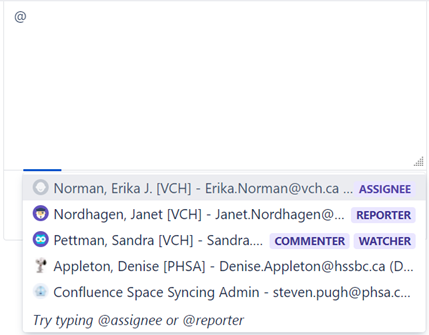
- In order to add notify someone, write @. A drop down list will appear and you may select the name of any of your team member who needs to be notified of the comment.
Add Me as a Watcher
- Select the Issue.
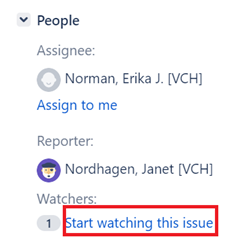
- Select Start watching this Issue on the right hand side of the screen.
Create Rules in Outlook for JIRA
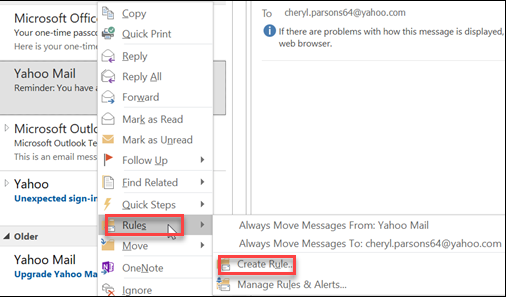
- Right-click a message in your inbox or another email folder and select Rules.
- To view more options, select Create Rule.
- In the Create Rule dialog box, select the checkbox Subject contains and enter JIRA.
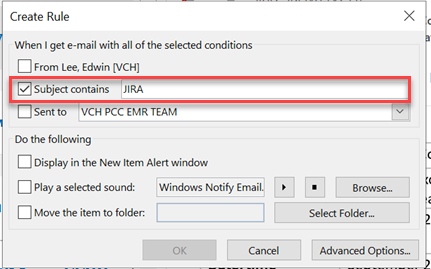
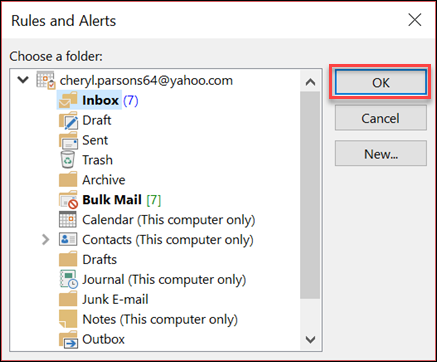
- If you want the rule to move a message to a folder: In the Do the following section, check the Move item to folder box, then select the folder from the Select Folder dialog that pops up, and then click OK.
- Click OK to save your rule.
Filter Query Updates
Emails results of a filter query at pre-defined intervals.
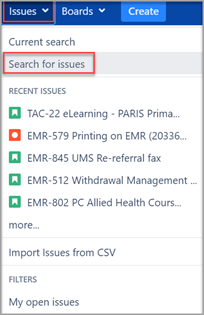
1. Click Issues on the Main Menu on the top of JIRA Homepage.
2. Select Search for Issues.
3. Write a basic or advanced query (filter by Project = “Project Name” as necessary). If you type Project = , a pop- up will come up for you to select the project name.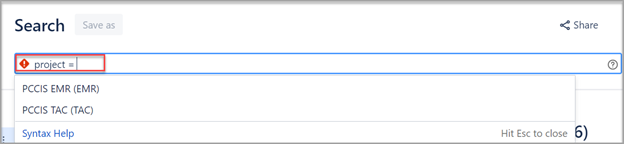
4. Click Search.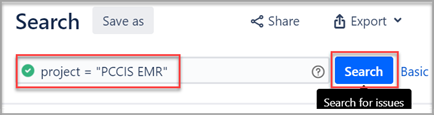
5. Click Save As. Save the query with the name PCCIS:<queryname>.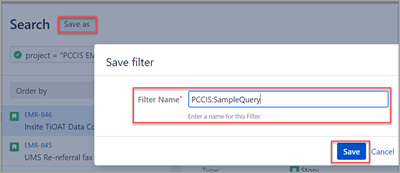
6. Click Details.
7. Click New Subscription.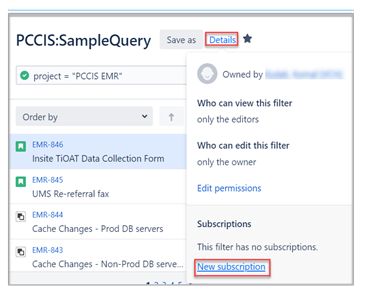
8. In the pop-up, select Personal Subscription in the field Recipients.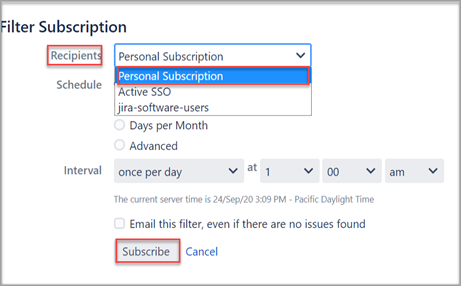
9. You may select the schedule and interval for email.
10. Click Subscribe.