Background
Step 1. Create Service Now Ticket
Step 2. Assign and Resolve Tickets
Appendix: Reassign to Clinical Service Desk
Background
For resourcing and reporting purposes, any support requests that come into EMR Help (EMRHelp@vch.ca) need to have a corresponding ticket created in Service Now.
Exceptions:
- Standard orders (e.g., new typing template)
- Change requests (e.g., new simple form)
- Daily support tasks (e.g., post merge notification, hidden results)
- Internal/Team questions (e.g., questions from clinical informatics)
Step 1. Create Service Now Ticket
1. Log into Service Now
2. Navigate to Home > My Work > Total Outstanding Incidents
3. Click New button
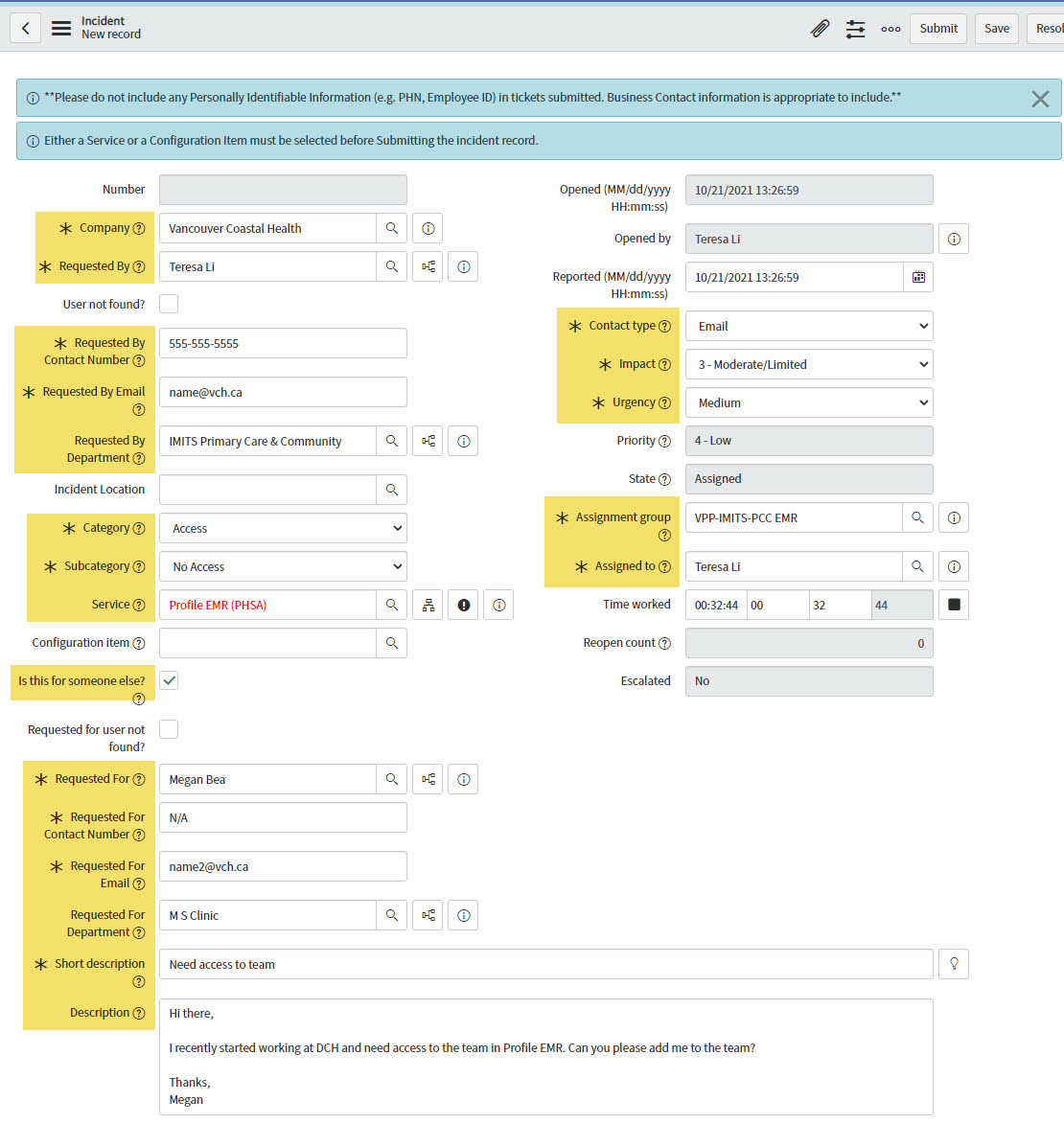
4. The Incident - New Record form will open. Complete the mandatory fields as follows:
- Company: <will auto populate>
- Requested By: <enter your name>
- Requested By Contact Number: <enter your phone number>
- Requested By Email: <will auto populate>
- Requested By Department: <will auto populate>
- Category: <select the most applicable category from dropdown>
- Subcategory: <select the most applicable subcategory from dropdown>
- Service: Profile EMR (PHSA)
- Select this checkbox: Is this for someone else?
- Requested For: <enter user's name>
- Requested For Contact Number: <enter user's phone number - enter 'N/A' if you don't know their number>
- Requested For Email: <will auto populate>
- Requested For Department: <will auto populate>
- Short description: <enter email's subject line>
- Description: <copy and paste contents of the email - NOTE: remove any client identifying information>
- Contact Type: Email
- Impact: <select the most applicable impact level>
- Urgency: <select the most applicable urgency level>
- Assignment Group: VPP-IMITS-PCC-EMR
- Assigned To: <your name or whoever will be working on the ticket>
See sample form below (fields that need to be completed are highlighted):
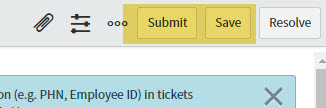
5. Click Save or Submit button
- Clicking Save will create the ticket and keep you on the incident form page
- Clicking Submit will create the ticket and navigate you away from the incident form page
Step 2. Assign and Resolve Tickets
For General Support Requests:
Assign the ticket to yourself and resolve the ticket when the request has been completed/the issue has been resolved.
Appendix: Reassign to Clinical Service Desk
SNOW tickets can be reassigned to Clinical Service Desk when the issue is not related to Profile EMR. For example, workstation issues.
1. Open SNOW ticket
2. Modify below fields and click Save
Assignment group: NTT-Clinical Service Desk
Transfer Code: Reassign to Another for Further Resolution (RAFR)
Transfer Reason: Enter relevant information