Background
Access
Create a Remote Assistance Shortcut on Desktop
How to Use Remote Assistance
Alternatives
Background
Remote assistance refers to a connection that is intended to provide technical support from a distance. In this mode, a user who is sitting at his or her computer can invite the EMR support person to see what is happening on the screen remotely.
Access
Service Desk: Request to be added to Windows Remote Assistance group.
Prerequisite: VPN installed and access granted by Service Desk.
Create a Remote Assistance Shortcut on Desktop
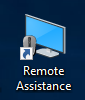
-
Right-click on Desktop > New > Shortcut
-
In Location paste: C:\Windows\System32\msra.exe /offerra
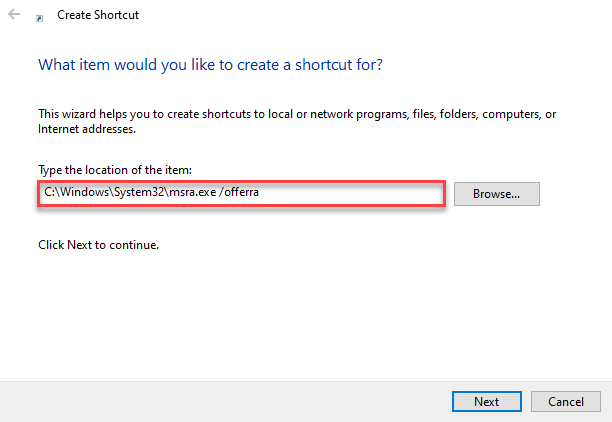
- Click Next
- Name: Remote Assistance
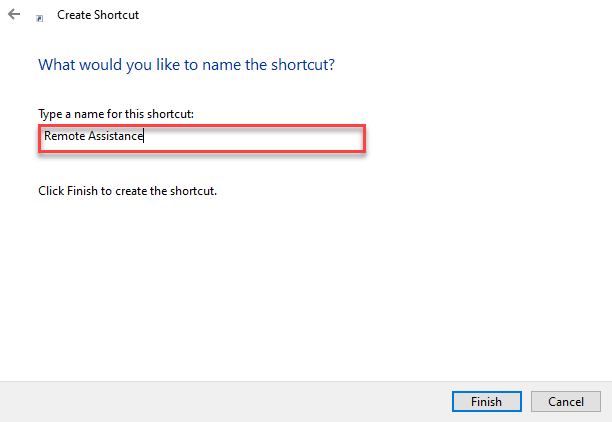
- Click Finish
You will now have a Remote Assistance icon on your desktop.
How to Use Remote Assistance
- Double-click on Remote Assistance icon
- Ask user for their PC Name (found on the bottom right of any health authority desktop)
- Enter PC Name into the Computer Name field
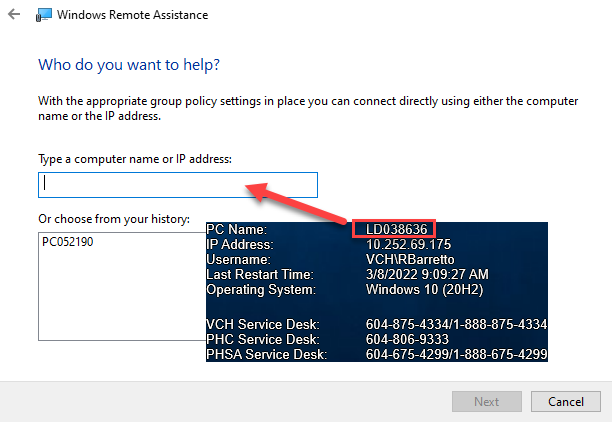
You can now see the user's desktop and also ask for permission to control it (if required).
Alternatives
Other alternatives especially for when users are using their personal computers are:
- Skype screen share
- Zoom meeting screen share
- Teams meeting screen share